paybito·mcp
Model Context Protocol

One package,
every AI app
you already use.

paybito-mcp injects exact PayBito API knowledge — endpoints, auth, request shapes — into any AI assistant, so it writes integration code that works the first time. Read-only: it never touches funds, keys, or balances.

data flow
PyPI pip install npm npx -y paybito-mcp knowledge helper read-only Claude Code Cursor Codex Gemini
Step-by-step setup

Choose your AI app

Pick the AI app you use. Each tab gives you the complete guide — from installing prerequisites to your first prompt. No coding experience needed.

Desktop AI Apps requires one-time setup
AI CLI Tools requires one-time setup
🚀 Antigravity IDE (Google)

Antigravity is Google's AI-powered coding IDE. It supports MCP servers natively — connect PayBito once and it's available in every conversation.

Install Antigravity IDE (if you don't have it)

If you already have Antigravity IDE installed, skip to Step 2.

Show me how to install Antigravity IDE
  1. Go to the official website: antigravity.google
  2. Download the installer for Windows (.exe)
  3. Run the downloaded installer and follow the setup wizard instructions
  1. Go to the official website: antigravity.google
  2. Download the installer for macOS (.dmg)
  3. Double-click the downloaded file and drag Antigravity to your Applications folder
  1. Go to the official website: antigravity.google
  2. Download the Linux (.AppImage or .deb) bundle
  3. Make the AppImage executable or install the Debian package via your package manager

Install Node.js (if you don't have it)

Node.js is needed to run the PayBito MCP package. If you already have it, skip to Step 3.

Show me how to install Node.js
  1. Go to nodejs.org
  2. Click the big green "Download Node.js (LTS)" button
  3. Open the downloaded .msi file
  4. Click Next → Next → Next → Install → Finish
  5. Open Command Prompt (press Win+R, type cmd, press Enter)
  6. Type node --version and press Enter. You should see a version number like v22.x.x
  1. Go to nodejs.org
  2. Click the big green "Download Node.js (LTS)" button
  3. Open the downloaded .pkg file
  4. Click Continue → Continue → Agree → Install (enter your password when asked)
  5. Open Terminal (press Cmd+Space, type "Terminal", press Enter)
  6. Type node --version and press Enter. You should see a version number like v22.x.x
  1. Open Terminal
  2. Run: sudo apt update && sudo apt install -y nodejs npm
  3. Or if you're on Fedora/RHEL: sudo dnf install -y nodejs npm
  4. Verify: type node --version — you should see v18+
💡

If your distro's Node is too old, use NodeSource for the latest LTS.

Create an .agents folder

In the root of your project directory, create a new folder named .agents.

Create mcp_config.json

Inside the .agents folder, create a file named mcp_config.json and paste this config:

{
  "mcpServers": {
    "paybito": {
      "command": "npx",
      "args": ["-y", "paybito-mcp"]
    }
  }
}

Restart and use PayBito

Restart your Antigravity IDE. Then open the chat and start by saying:

# type this in Antigravity's chat
use paybito mcp

Antigravity will load the PayBito MCP server and guide you through the integration!

🟠 Claude Desktop

Claude Desktop supports MCP servers natively. Connect PayBito once and it's available in every conversation.

Install Claude Desktop (if you don't have it)

If you already have Claude Desktop, skip to Step 2.

Show me how to install Claude Desktop
  1. Go to: anthropic.com/claude/desktop
  2. Click "Download for Windows"
  3. Run the installer and sign in to your Claude account
  1. Go to: anthropic.com/claude/desktop
  2. Click "Download for macOS"
  3. Open the downloaded .dmg file and drag Claude to your Applications folder
  4. Sign in to your Claude account

Install Node.js (if you don't have it)

Node.js is needed to run the PayBito MCP package.

Show me how to install Node.js
  1. Go to nodejs.org
  2. Click the big green "Download Node.js (LTS)" button
  3. Open the downloaded .msi file
  4. Click Next → Next → Next → Install → Finish
  5. Open Command Prompt (Win+R, type cmd, Enter)
  6. Type node --version — you should see v22.x.x
  1. Go to nodejs.org
  2. Click "Download Node.js (LTS)"
  3. Open the .pkg file → Continue → Agree → Install
  4. Open Terminal → type node --version
  1. Open Terminal
  2. Run: sudo apt update && sudo apt install -y nodejs npm
  3. Verify: node --version

Find your Claude config file

Claude Desktop stores its MCP config in a JSON file. Open it (create it if it doesn't exist):

# Open this file (press Win+R, paste the path)
%APPDATA%\Claude\claude_desktop_config.json
# Open this file in Finder or Terminal
~/Library/Application Support/Claude/claude_desktop_config.json

Paste the MCP config

Add this JSON to the file (or replace its contents if it's empty):

{
  "mcpServers": {
    "paybito": {
      "command": "npx",
      "args": ["-y", "paybito-mcp"]
    }
  }
}

Save the file and restart Claude Desktop.

Verify and start chatting

After restart, look for the 🔌 MCP icon in Claude's input area — it shows connected servers. You should see "paybito" listed. Then type:

Use PayBito MCP. Ask me what I'm building
so you can help me integrate PayBito's APIs.

Claude will pull the PayBito tools and resources, then walk you through building your integration!

Cursor

Cursor is an AI-powered code editor. Add PayBito MCP so Cursor's AI assistant knows PayBito's APIs inside-out.

Install Cursor (if you don't have it)

If you already have Cursor installed, skip to Step 2.

Show me how to install Cursor
  1. Go to: cursor.com
  2. Click "Download" for Windows
  3. Run the installer and complete the setup
  1. Go to: cursor.com
  2. Click "Download" for macOS
  3. Open the downloaded .dmg/archive and move Cursor to your Applications folder
  1. Go to: cursor.com
  2. Download the Linux (.AppImage) package
  3. Make the AppImage executable: chmod +x Cursor.AppImage and run it

Install Node.js (if you don't have it)

Node.js is needed to run the PayBito MCP package. If you already have it, skip to Step 3.

Show me how to install Node.js
  1. Go to nodejs.org → click "Download Node.js (LTS)"
  2. Run the .msi installer → Next → Next → Next → Install → Finish
  3. Open Command Prompt → type node --version to verify
  1. Go to nodejs.org → download LTS .pkg
  2. Run installer → Continue → Agree → Install
  3. Open Terminalnode --version
  1. Open Terminalsudo apt update && sudo apt install -y nodejs npm
  2. Verify: node --version

Create the MCP config file

In your project folder, create a file at .cursor/mcp.json (or globally at ~/.cursor/mcp.json):

# run this in your project folder (Command Prompt)
mkdir .cursor
notepad .cursor\mcp.json
# run this in your project folder (Terminal)
mkdir -p .cursor
nano .cursor/mcp.json

Paste the config and save

{
  "mcpServers": {
    "paybito": {
      "command": "npx",
      "args": ["-y", "paybito-mcp"]
    }
  }
}

Save the file, then restart Cursor.

Start using it

Open Cursor's AI chat (Ctrl+L) and type:

Use PayBito MCP. Initialize PayBito and
ask me what I'm building.

Cursor's AI will connect to PayBito MCP and start guiding you through your integration!

🔷 VS Code + GitHub Copilot

VS Code with GitHub Copilot supports MCP servers in Agent mode. Add PayBito so Copilot knows the APIs.

Install VS Code & GitHub Copilot (if you don't have them)

If you already have them installed, skip to Step 2.

Show me how to install VS Code & Copilot
  1. Download and install VS Code from code.visualstudio.com for your operating system.
  2. Open VS Code, press Ctrl+Shift+X (or Cmd+Shift+X on Mac) to open Extensions.
  3. Search for "GitHub Copilot" and click Install.
  4. Click the profile icon in the bottom-left corner of VS Code and sign in to your GitHub account to activate Copilot.

Install Node.js (if you don't have it)

Node.js is needed to run the PayBito MCP package.

Show me how to install Node.js
  1. Go to nodejs.org → click "Download Node.js (LTS)"
  2. Run the .msiNext → Next → Install → Finish
  3. Open Command Promptnode --version to verify
  1. Go to nodejs.org → download LTS .pkg
  2. Run installer → Continue → Agree → Install
  3. Open Terminalnode --version
  1. Run: sudo apt update && sudo apt install -y nodejs npm
  2. Verify: node --version

Create the MCP config file

In your project folder, create .vscode/mcp.json:

# run in your project folder (Command Prompt)
mkdir .vscode
notepad .vscode\mcp.json
# run in your project folder (Terminal)
mkdir -p .vscode
nano .vscode/mcp.json

Paste the config and save

{
  "servers": {
    "paybito": {
      "type": "stdio",
      "command": "npx",
      "args": ["-y", "paybito-mcp"]
    }
  }
}
⚠️

Note: VS Code uses "servers" (not "mcpServers") and requires "type": "stdio". This is different from other tools!

Open Copilot in Agent mode and start

Open the Copilot Chat panel (Ctrl+Shift+I), switch to Agent mode (click the mode selector at the top), then type:

Use PayBito MCP. Initialize PayBito and
ask me what I'm building.

Copilot Agent mode will detect the MCP server and use PayBito's tools to help you write integration code!

🌊 Windsurf

Windsurf (by Codeium) supports MCP servers. Add PayBito to get API-aware code generation.

Install Windsurf (if you don't have it)

If you already have Windsurf installed, skip to Step 2.

Show me how to install Windsurf
  1. Go to: codeium.com/windsurf
  2. Click "Download" for Windows
  3. Run the installer and complete the setup
  1. Go to: codeium.com/windsurf
  2. Click "Download" for macOS
  3. Open the downloaded .dmg file and drag Windsurf to your Applications folder
  1. Go to: codeium.com/windsurf
  2. Download the Linux (.AppImage or .deb) package
  3. Follow the provided instructions to complete the installation

Install Node.js (if you don't have it)

Node.js is needed to run the PayBito MCP package. If you already have it, skip to Step 3.

Show me how to install Node.js
  1. Go to nodejs.org → click "Download Node.js (LTS)"
  2. Run the .msiNext → Next → Install → Finish
  3. Verify: Command Promptnode --version
  1. Go to nodejs.org → download LTS .pkg
  2. Run installer → Continue → Agree → Install
  3. Verify: Terminalnode --version
  1. Run: sudo apt update && sudo apt install -y nodejs npm
  2. Verify: node --version

Open the Windsurf MCP config

Open or create the Windsurf MCP config file:

# press Win+R and paste this
notepad %USERPROFILE%\.codeium\windsurf\mcp_config.json
# open Terminal and run
nano ~/.codeium/windsurf/mcp_config.json

Paste the config and save

{
  "mcpServers": {
    "paybito": {
      "command": "npx",
      "args": ["-y", "paybito-mcp"]
    }
  }
}

Save the file and restart Windsurf.

Start using it

Open Windsurf's AI assistant (Cascade) and type:

Use PayBito MCP. Initialize PayBito and
ask me what I'm building.

Windsurf will use the PayBito MCP tools to help you build your integration!

🟠 Claude Code (CLI)

Claude Code is Anthropic's AI coding agent that runs in your terminal. It has first-class MCP support.

Install Claude Code (if you don't have it)

If you already have Claude Code installed, skip to Step 2.

Show me how to install Claude Code
  1. Open your command-line terminal.
  2. Run the native installer command:
    irm https://claude.ai/install.ps1 | iex
  3. Or, install globally via npm:
    npm install -g @anthropic-ai/claude-code
  1. Open Terminal.
  2. Run the native installer command:
    curl -fsSL https://claude.ai/install.sh | bash
  3. Or, install globally via npm:
    npm install -g @anthropic-ai/claude-code
💡

Note: Claude Code requires a paid Anthropic Console API key or team/enterprise subscription to run.

Install Node.js (if you don't have it)

Node.js is needed to run the PayBito MCP package. If you already have it, skip to Step 3.

Show me how to install Node.js
  1. Go to nodejs.org → click "Download Node.js (LTS)"
  2. Run the .msiNext → Next → Install → Finish
  3. Open Command Prompt → type node --version
  1. Go to nodejs.org → download LTS .pkg
  2. Run installer → Continue → Agree → Install
  3. Open Terminalnode --version
  1. Run: sudo apt update && sudo apt install -y nodejs npm
  2. Verify: node --version

Add PayBito MCP with one command

Claude Code has a built-in command to add MCP servers. Open your terminal and run:

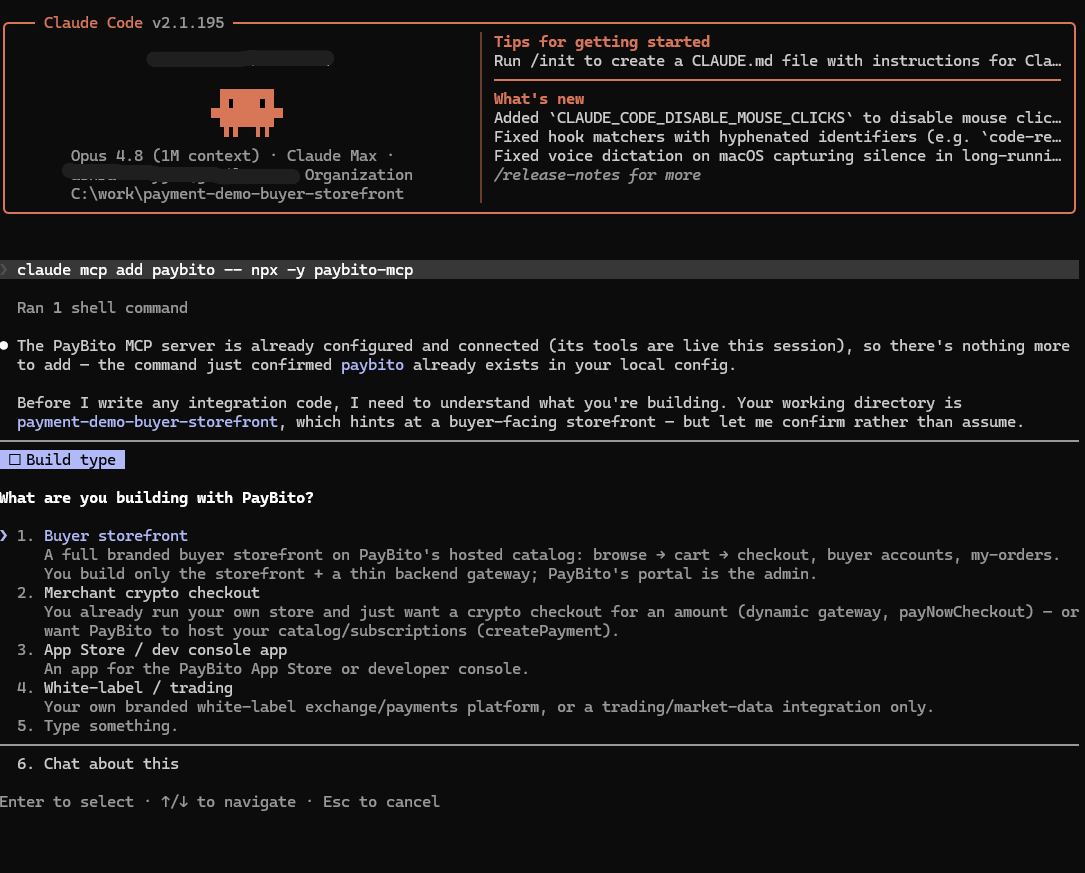
claude mcp add paybito -- npx -y paybito-mcp
💡

That's it! This single command registers the PayBito MCP server. No config files to edit.

Verify it's connected

Start Claude Code and check that the MCP server is active:

# inside Claude Code, type:
/mcp

You should see "paybito" listed as a connected MCP server.

Start chatting — use the magic prompt

Use PayBito MCP. Initialize PayBito and
ask me what I'm building.

Claude Code will call the PayBito tools, load the API knowledge, and guide you through your integration!

Gemini CLI

Gemini CLI is Google's AI coding agent for the terminal. It supports MCP servers through a settings file.

Install Gemini CLI (if you don't have it)

If you already have Gemini CLI installed, skip to Step 2.

Show me how to install Gemini CLI
  1. Open your command terminal.
  2. Install the CLI globally via npm:
    npm install -g @google/gemini-cli
  3. Check out the official repository for details: github.com/google-gemini/gemini-cli

Install Node.js (if you don't have it)

Node.js is needed to run the PayBito MCP package. If you already have it, skip to Step 3.

Show me how to install Node.js
  1. Go to nodejs.org → click "Download Node.js (LTS)"
  2. Run the .msiNext → Next → Install → Finish
  3. Open Command Prompt → type node --version
  1. Go to nodejs.org → download LTS .pkg
  2. Run installer → Continue → Agree → Install
  3. Open Terminalnode --version
  1. Run: sudo apt update && sudo apt install -y nodejs npm
  2. Verify: node --version

Open the Gemini settings file

Gemini CLI stores MCP config in a JSON settings file:

# press Win+R and paste this
notepad %USERPROFILE%\.gemini\settings.json
# open Terminal and run
nano ~/.gemini/settings.json

Paste the config and save

{
  "mcpServers": {
    "paybito": {
      "command": "npx",
      "args": ["-y", "paybito-mcp"]
    }
  }
}

Save the file. No restart needed — Gemini CLI reads it on next launch.

Start Gemini CLI and use it

Open your terminal, run gemini, then type:

Use PayBito MCP. Initialize PayBito and
ask me what I'm building.

Gemini CLI will connect to PayBito MCP and walk you through your integration!

🤖 OpenAI Codex CLI

OpenAI's Codex CLI is an AI coding agent for the terminal. It uses a TOML config file for MCP servers.

Install OpenAI Codex CLI (if you don't have it)

If you already have OpenAI Codex CLI installed, skip to Step 2.

Show me how to install OpenAI Codex CLI
  1. Open your command terminal.
  2. Install the CLI globally via npm:
    npm install -g @openai/codex
  3. Check out the official repository for details: github.com/openai/codex

Install Node.js (if you don't have it)

Node.js is needed to run the PayBito MCP package. If you already have it, skip to Step 3.

Show me how to install Node.js
  1. Go to nodejs.org → click "Download Node.js (LTS)"
  2. Run the .msiNext → Next → Install → Finish
  3. Open Command Prompt → type node --version
  1. Go to nodejs.org → download LTS .pkg
  2. Run installer → Continue → Agree → Install
  3. Open Terminalnode --version
  1. Run: sudo apt update && sudo apt install -y nodejs npm
  2. Verify: node --version

Open the Codex config file

Codex CLI uses a TOML config file (different from the JSON used by other tools):

# press Win+R and paste this
notepad %USERPROFILE%\.codex\config.toml
# open Terminal and run
nano ~/.codex/config.toml

Paste the config and save

Add this to the file (TOML format — no curly braces!):

[mcp_servers.paybito]
command = "npx"
args = ["-y", "paybito-mcp"]

Save the file.

Start Codex CLI and use it

Open your terminal, run codex, then type:

Use PayBito MCP. Initialize PayBito and
ask me what I'm building.

Codex CLI will load the PayBito MCP server and start guiding you through your integration!

What happens next

Your first prompt

Once connected, just say the magic words. The AI will greet you and guide you from there.

Trigger phrases that work

Type any of these into your AI app to activate PayBito MCP. The AI reads the PayBito knowledge and starts an interactive setup:

"Use PayBito MCP" "Initialize PayBito" "I want to integrate PayBito" "Help me add PayBito payments"

What the AI does behind the scenes

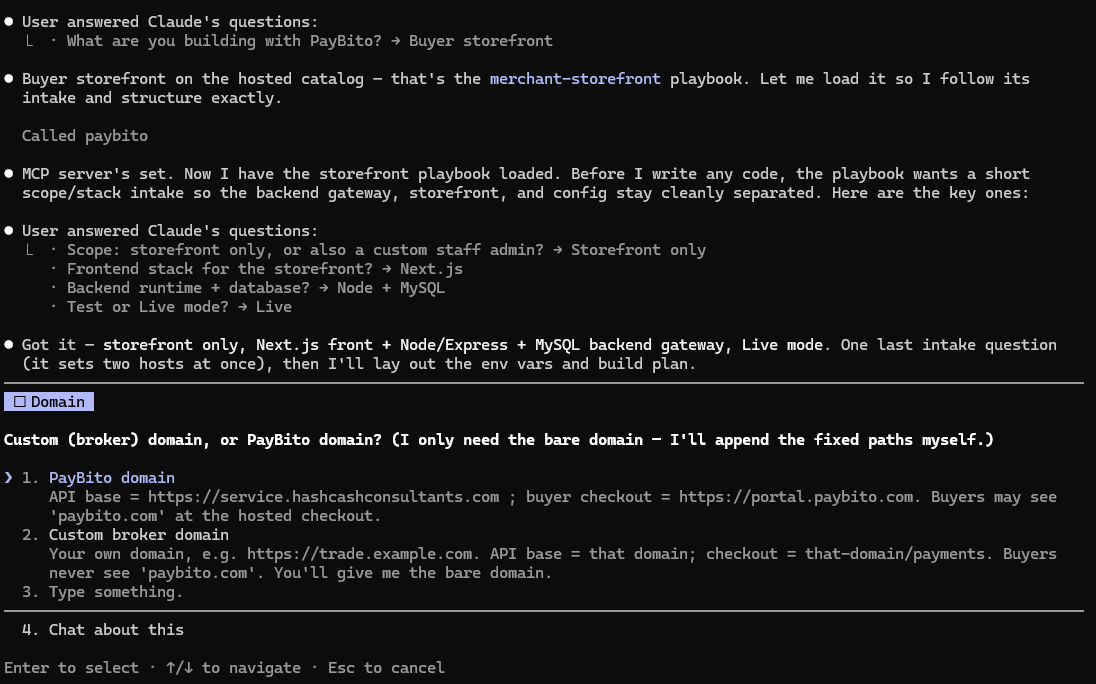
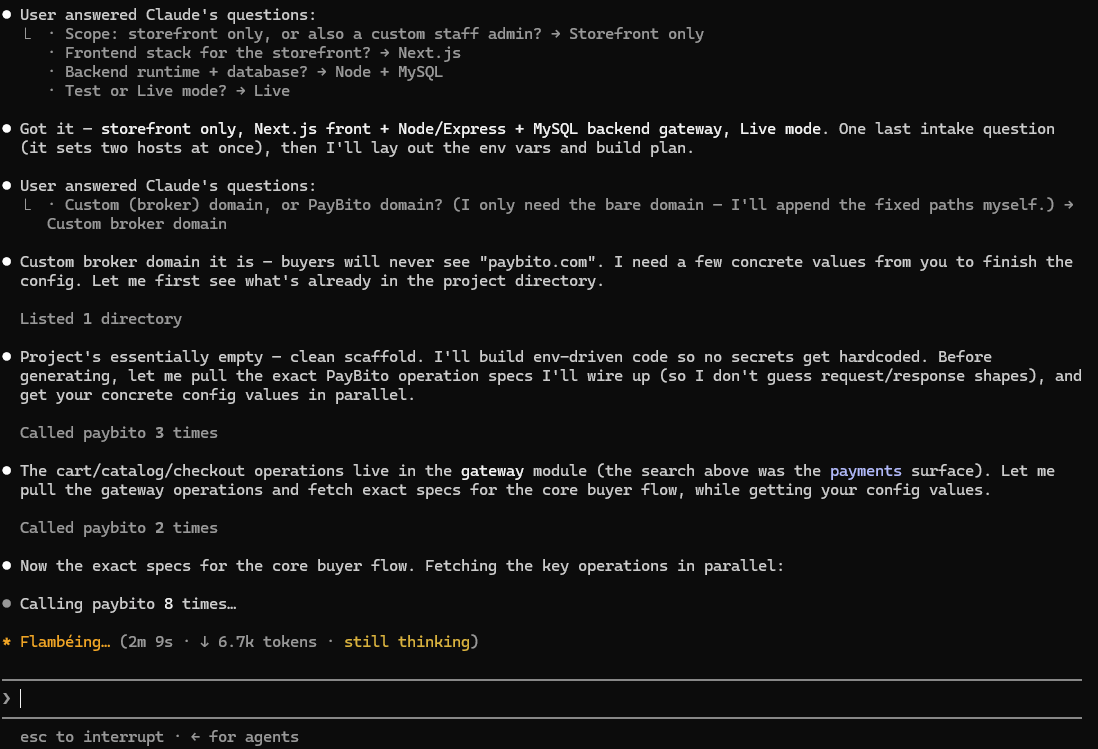
When you say the trigger phrase, the AI:

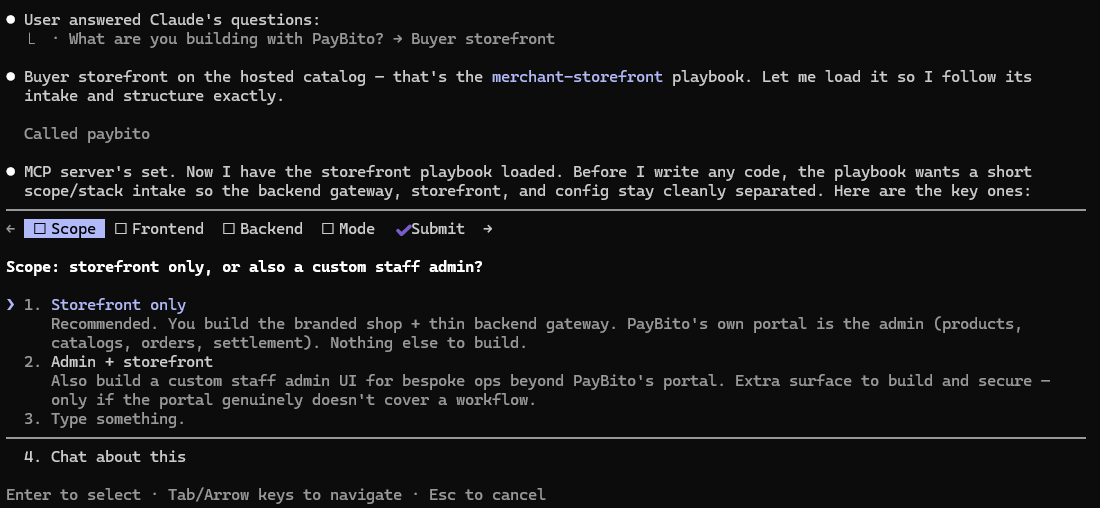
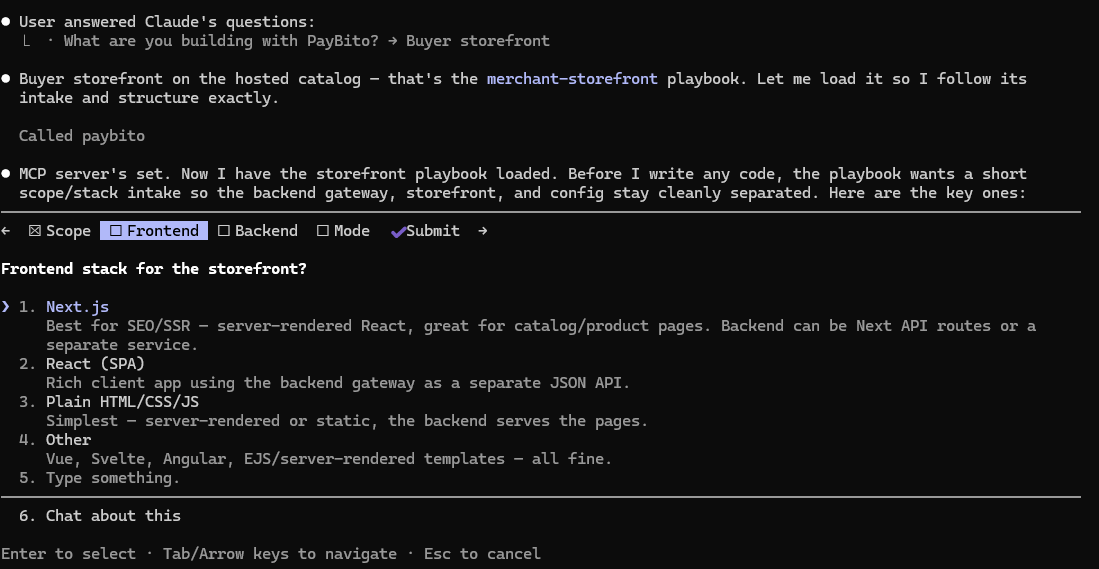
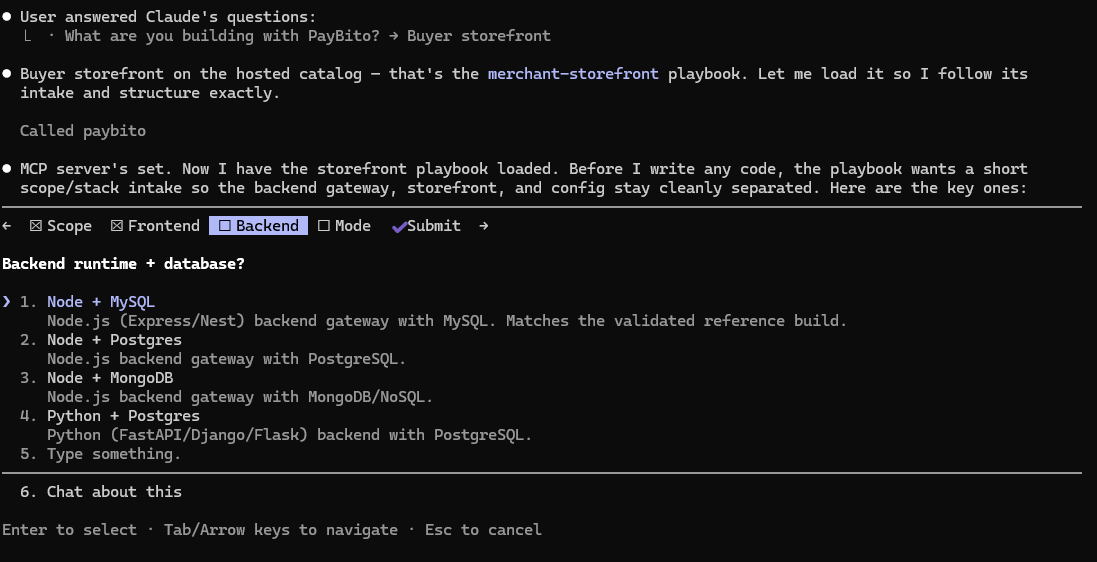
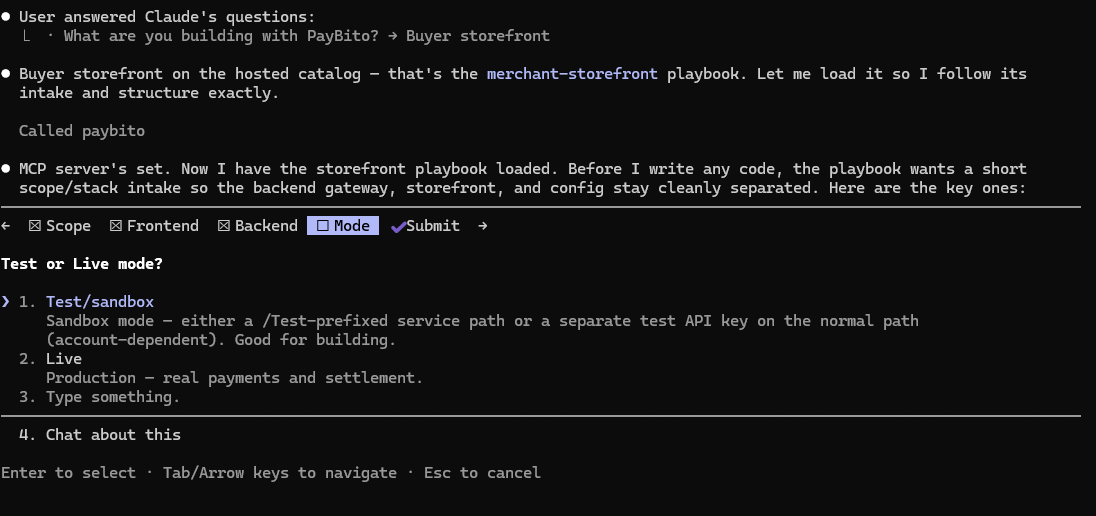
  1. Reads overview.md and auth.md from the knowledge files
  2. Asks you "What are you building?" to pick the right API module
  3. Loads the relevant endpoints, auth scheme, and request shapes
  4. Writes working integration code for your specific use case
Example conversation
Use PayBito MCP
Welcome to PayBito MCP! 🎉

I have access to PayBito's complete API knowledge — 1,058 endpoints across trading, payments, checkout, and platform services.

What are you building?
a Trading / Exchange app — spot, futures, market data
b Merchant payments — invoices, billing, KYC
c Checkout / Storefront — products, cart, payment links
d White-label platform — launch your own exchange
b — I need to add crypto payments to my website
Great choice! 🏦 I'll use the payments module.

A few quick questions:
• What's your platform domain? (e.g. trade.yoursite.com)
• Test mode or live?
• What language is your backend? (Node.js, Python, PHP, …)

I'll then generate your complete integration code with the correct auth headers and endpoints.
Routing

It asks one question, then routes

The assistant first learns what you're building, so a payments request never hits the trading API.

exchange

Trading & ICO

Spot, futures, options, market data, copy-trading.

payments

Merchant API

Invoices, billing, KYC, recurring, settlements.

gateway

Checkout

Products, catalogs, cart, payment links & buttons.

platform

Build apps

White-label exchange & apps across PayBito platforms.

"What are you building?"

The answer sets the module and the base URL — your own broker domain, or a PayBito host. The AI fills the endpoint; you keep the keys.