Overview
This guide explains how to create a product, generate a payment link, and integrate it into the Luxcey Waves codebase for checkout functionality.
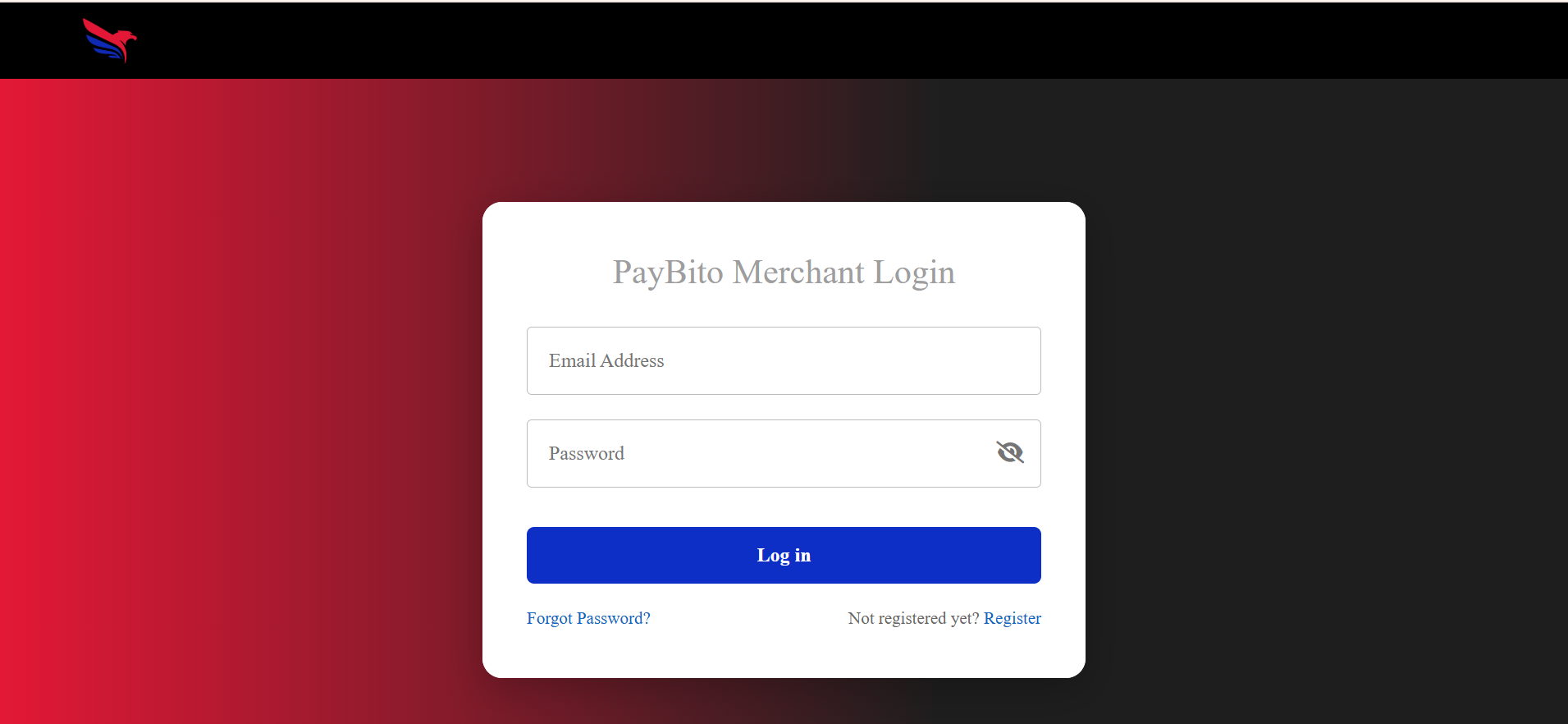
Log in to Merchant Console
The Merchant Console is the central hub for managing your payment gateway settings, products, and transactions. Log in to access your account and proceed with the setup.
Create Product
Creating a product in the Merchant Console allows you to define the details and pricing for items you want to sell. This is the first step in setting up your payment flow.
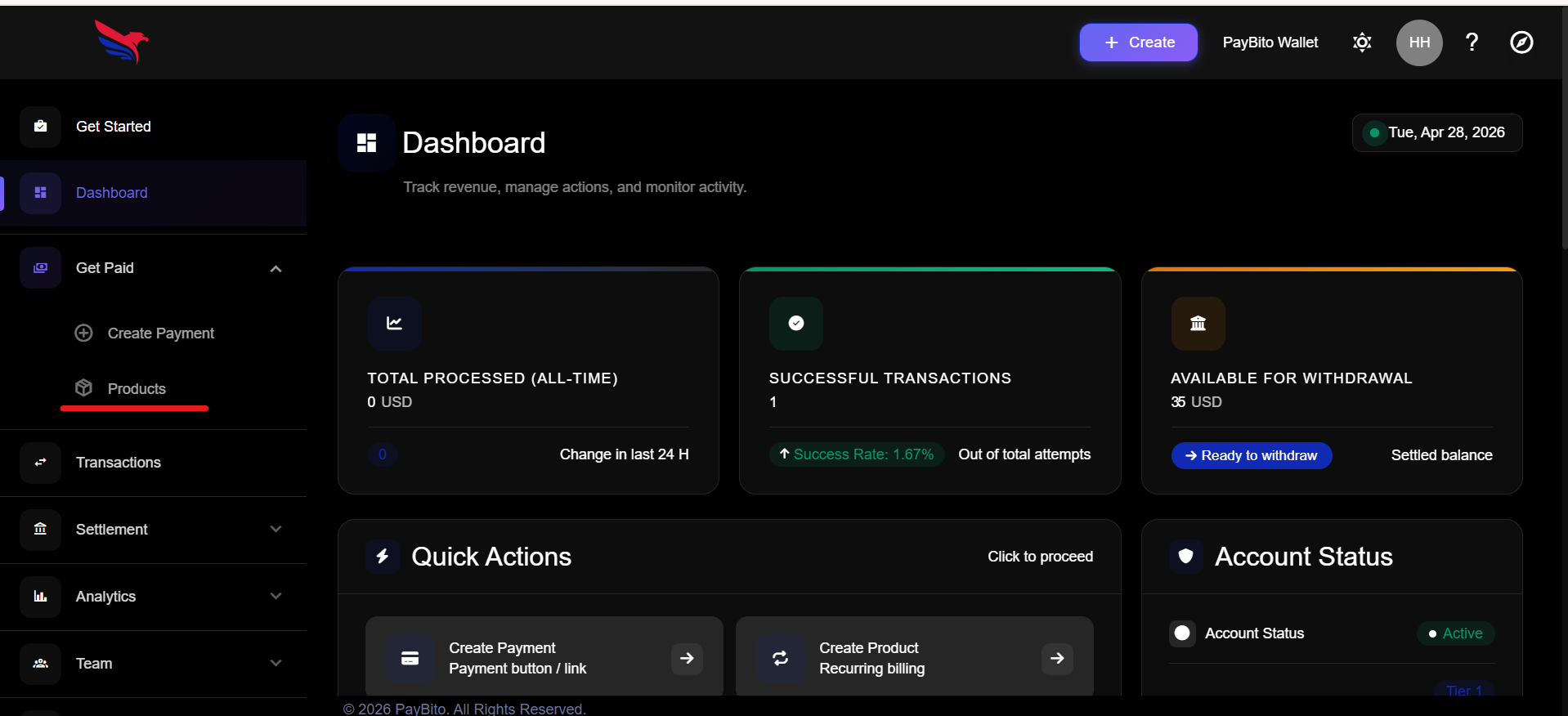
Go to product menu
Navigate to the product menu in the Merchant Console to view your created products. From there, you can select the product for which you want to generate a payment link.
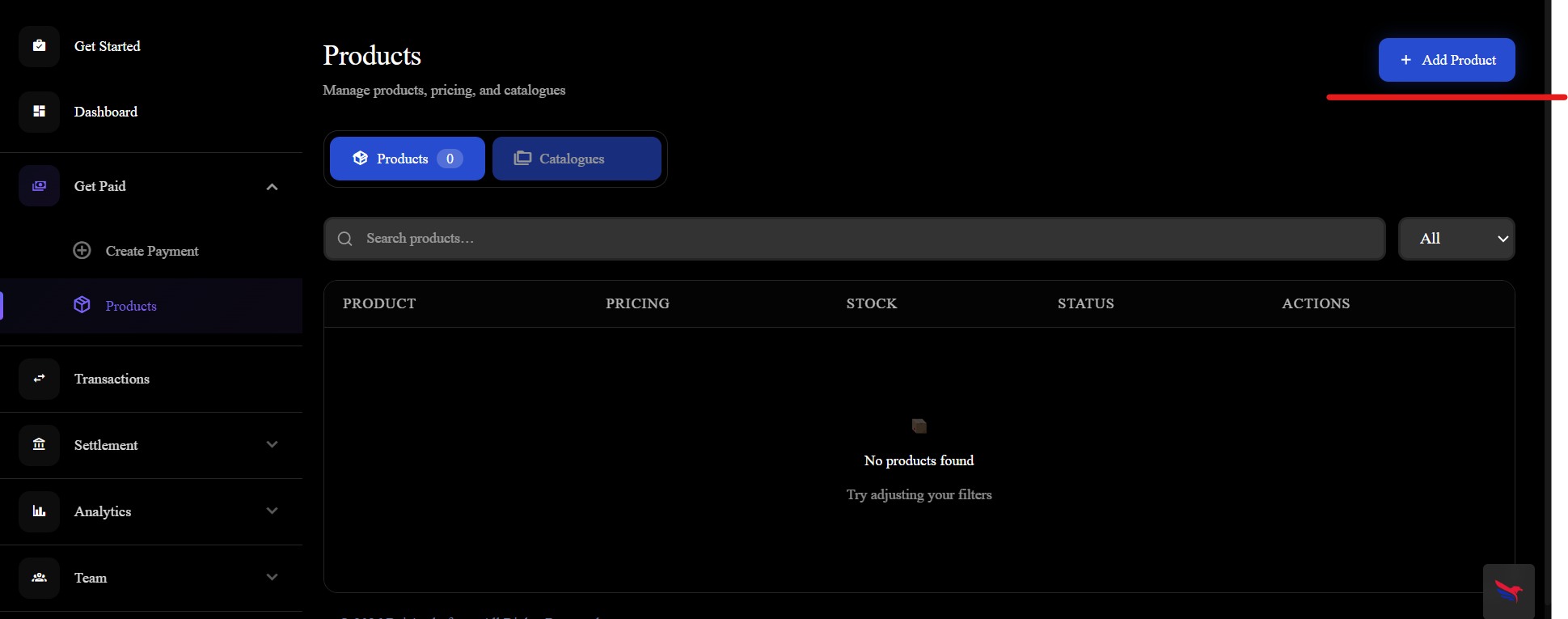
Click on Add Product Button
After selecting the product, click on the "Add Product" button to proceed with the payment link generation.
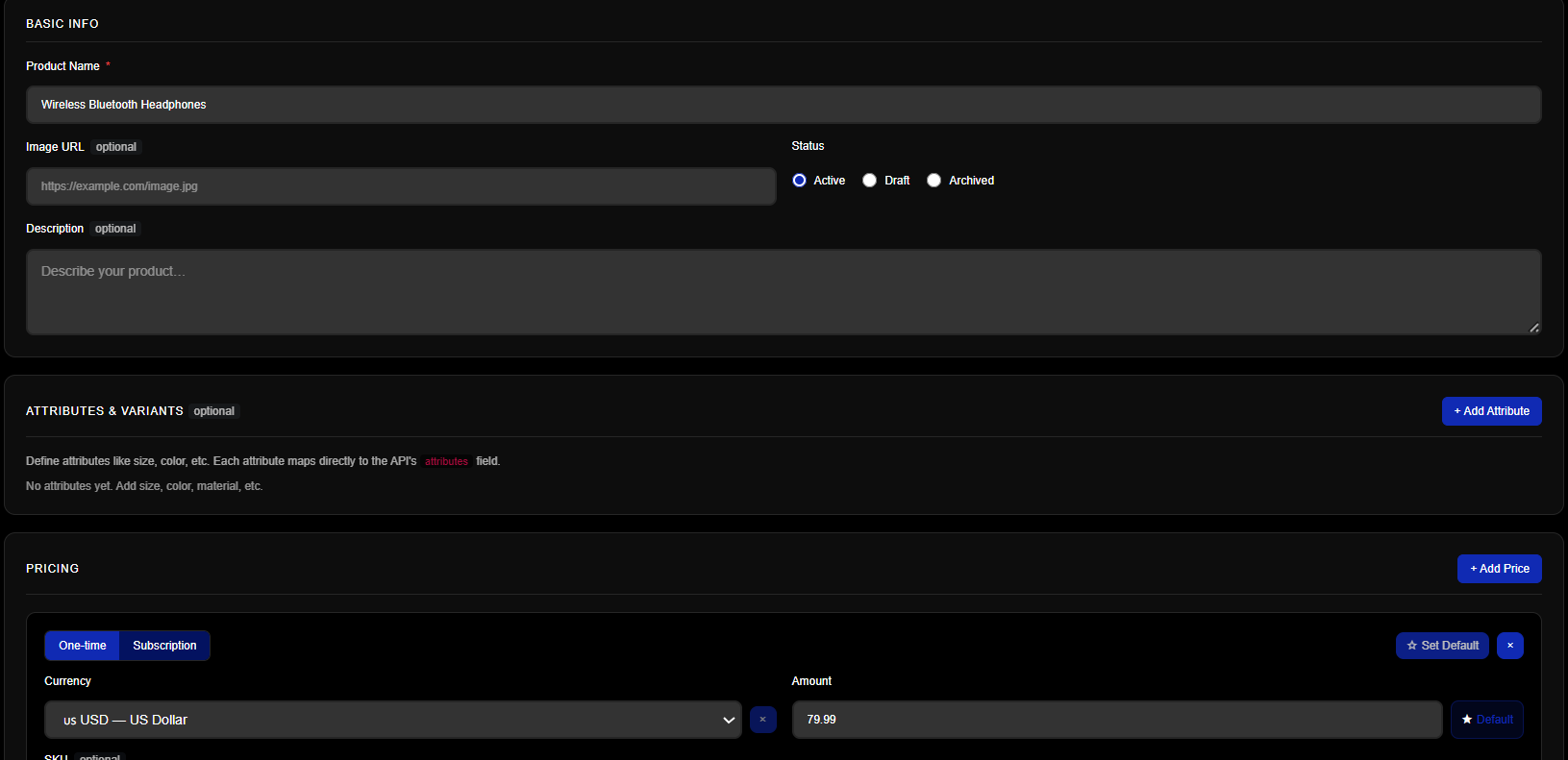
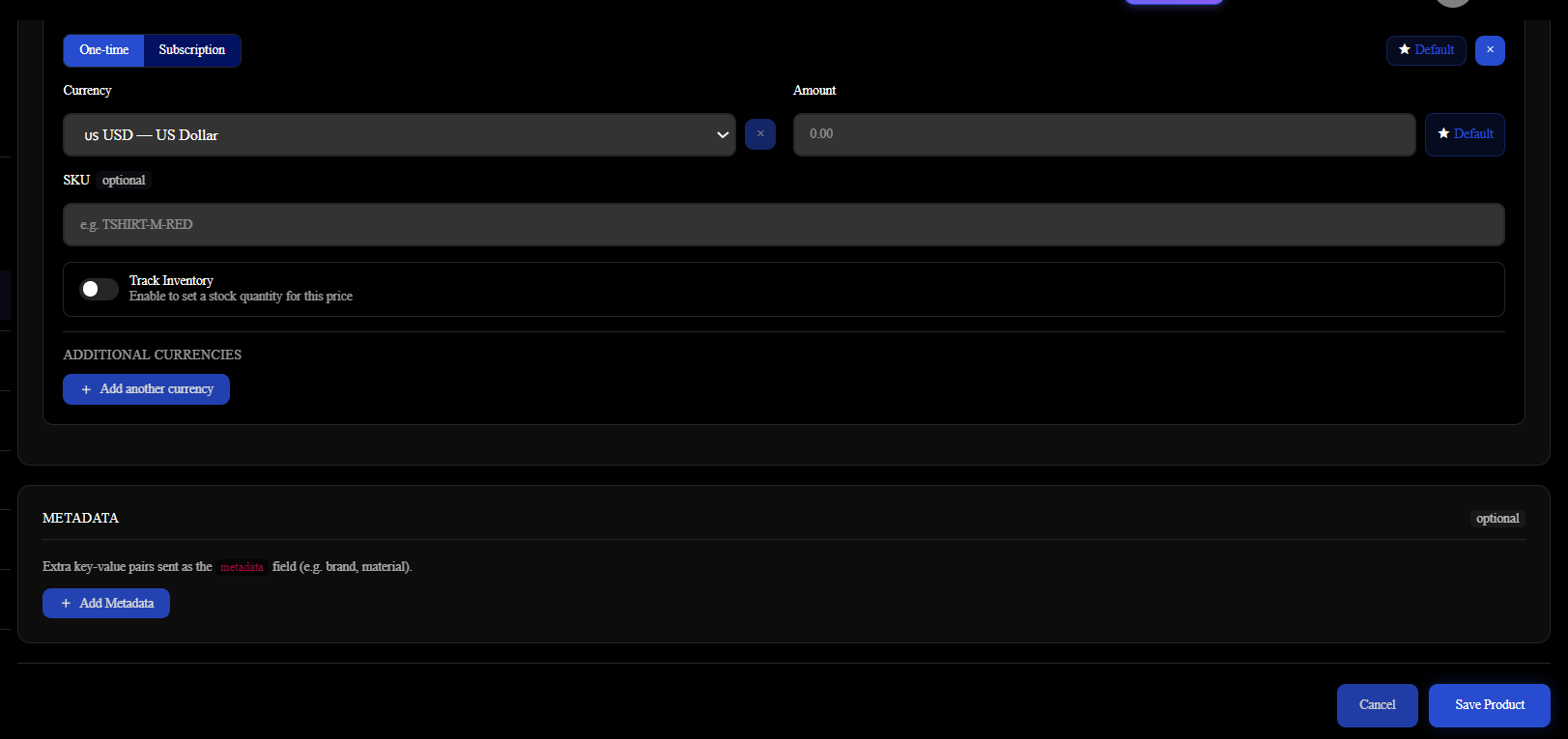
Fill the product details and click on Save Product Button
Fill in the required product details such as name, description, price, and currency. Once all the information is entered, click on the "Save Product" button to generate the payment link.
Create Payment Link
Once your product is created, you can generate a payment link that customers can use to complete their purchase. This link can be shared via email, social media, or embedded in your website.
Go to Create Payment Menu
Navigate to the "Create Payment" menu in the Merchant Console to start the process of generating a payment link for your product.
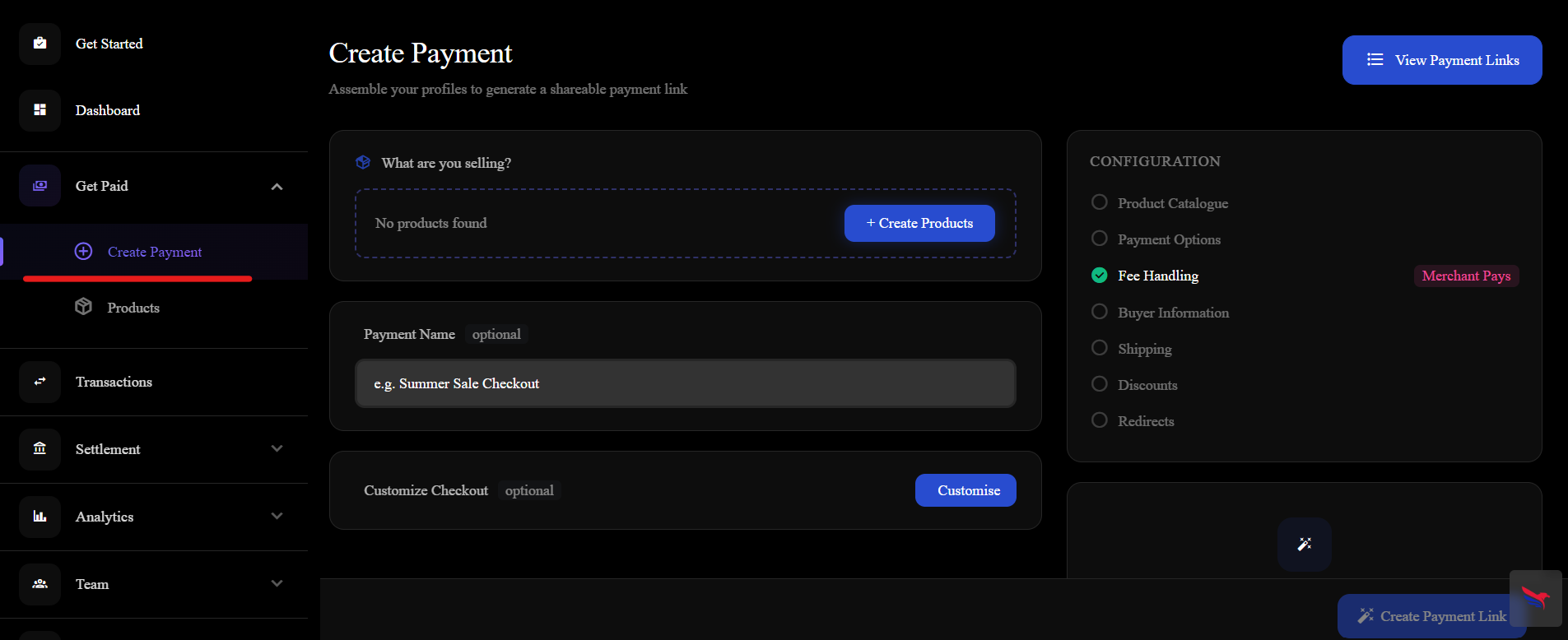
Select the Product and click on Create Payment link button
Select the product for which you want to create a payment link and click on the "Create Payment Link" button to proceed.
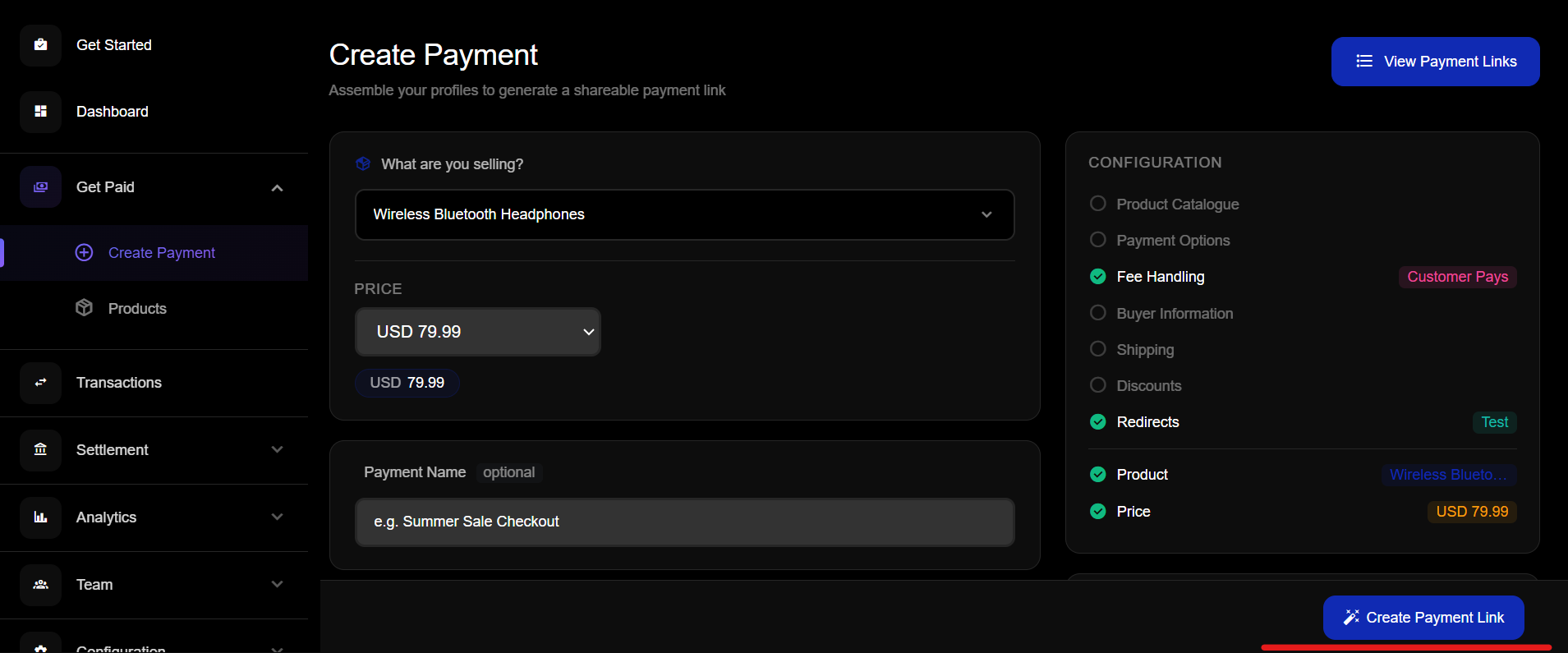
After create payment link click on the Link
After the payment link is generated, click on the link to view the payment page. This page will display the product details and allow customers to complete their purchase using the generated payment link.
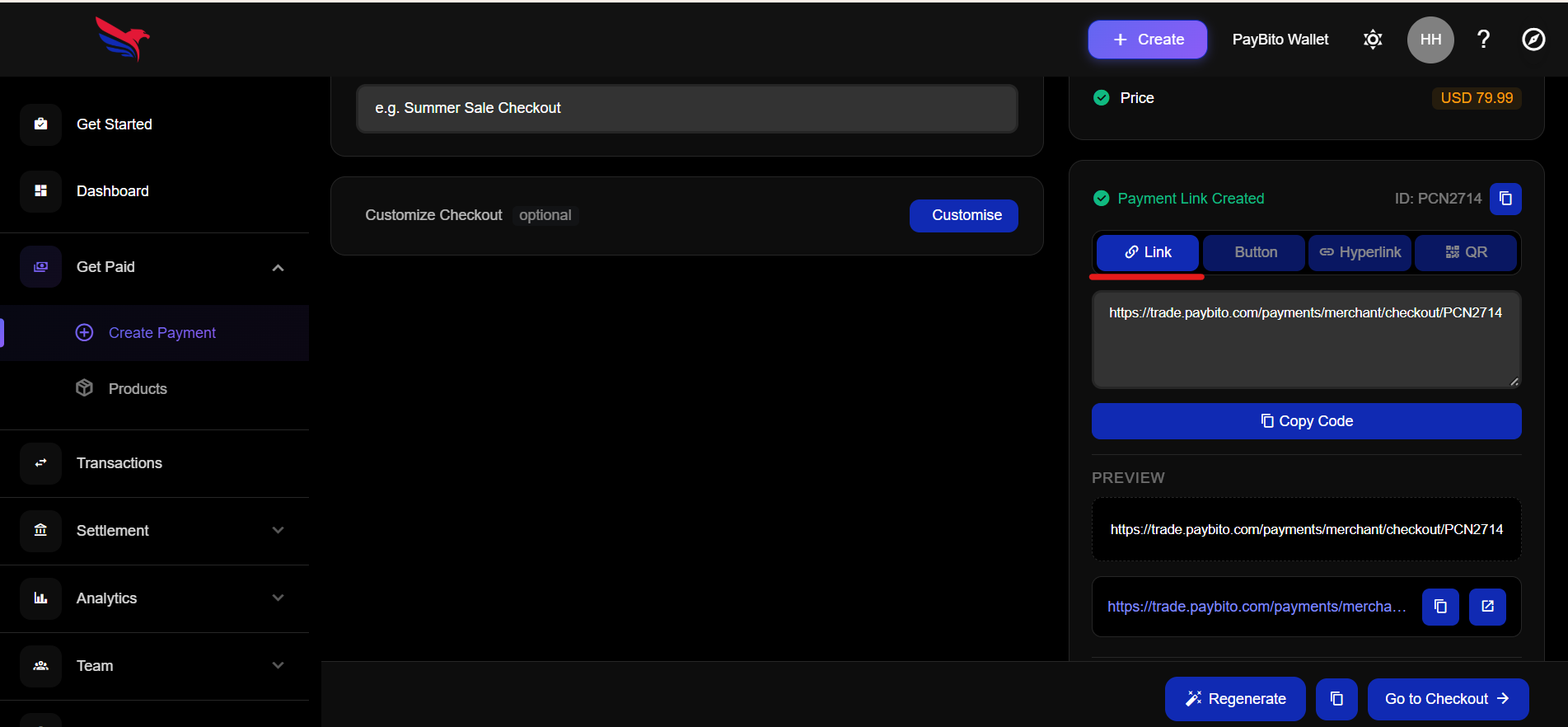
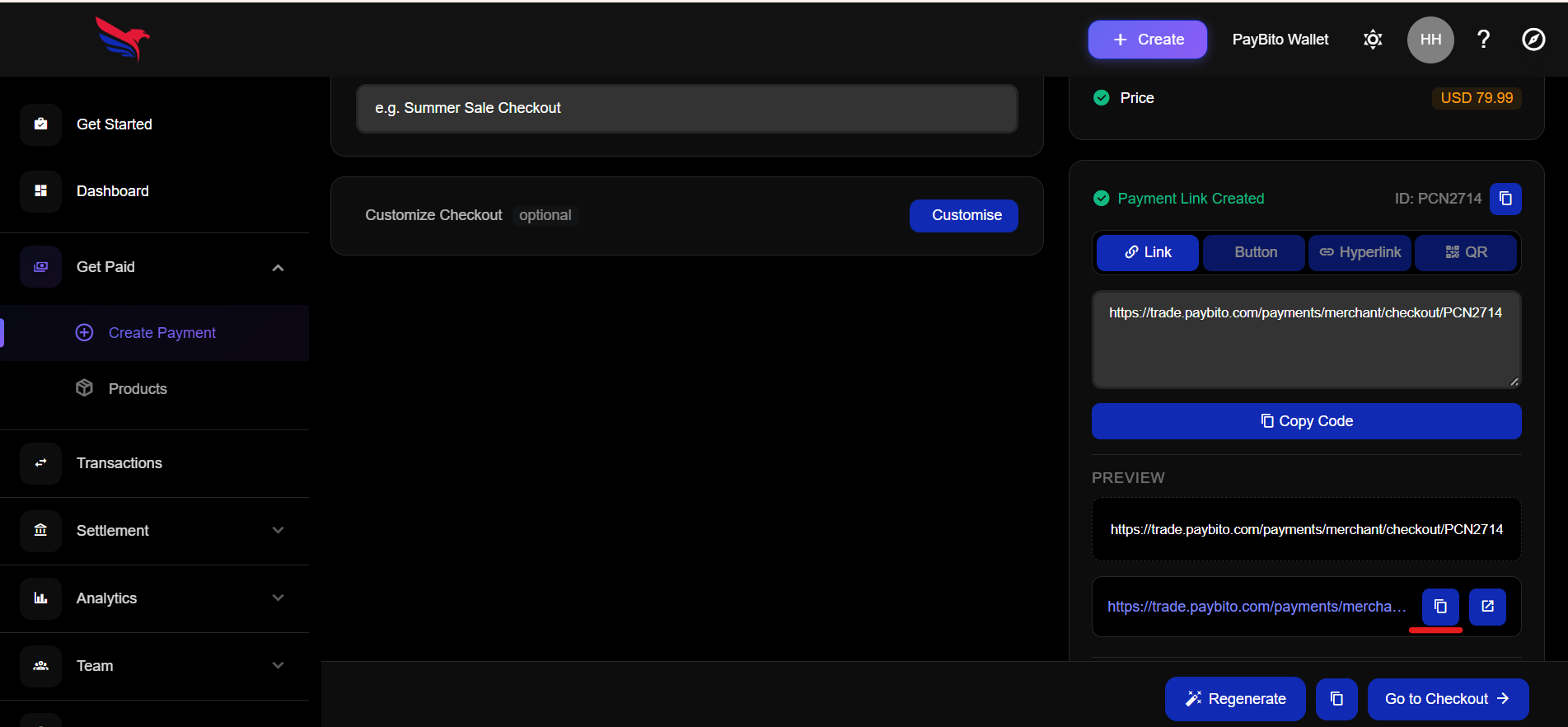
Copy the Link
Copy the generated payment link to share it with your customers or to integrate it into your website for seamless checkout functionality.
Open Luxcey Waves Codebase
After generating the payment link, integrate it into the Luxcey Waves codebase to enable seamless checkout functionality on your website.
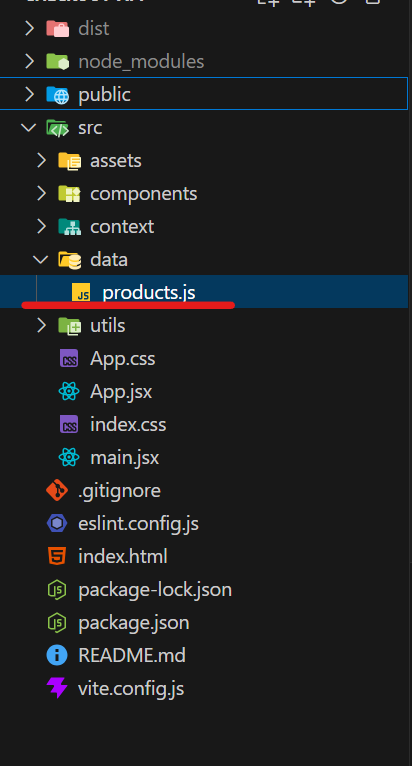
Go to src-->data-->products.js page
Navigate to the "src/data/products.js" file in the Luxcey Waves codebase to add the generated payment link for your product.
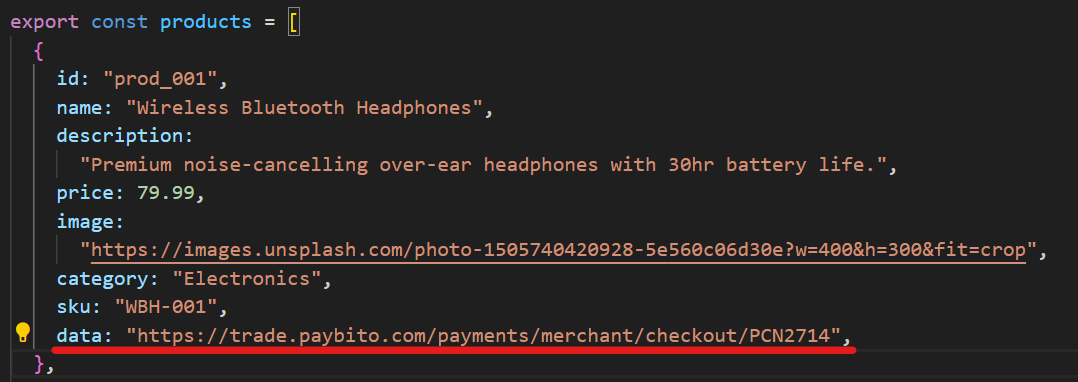
Add Product Details same as you fill in product add form
Paste the Link here
Paste the copied payment link into the appropriate section of the "products.js" file to integrate it with the Luxcey Waves checkout flow.