Dashboard
The BitoHRIS Dashboard provides admins with a quick, organized snapshot of everything happening within the organization. It displays real-time information on employees, assets, loans, attendance, requests, and upcoming events—all in a single centralized view.
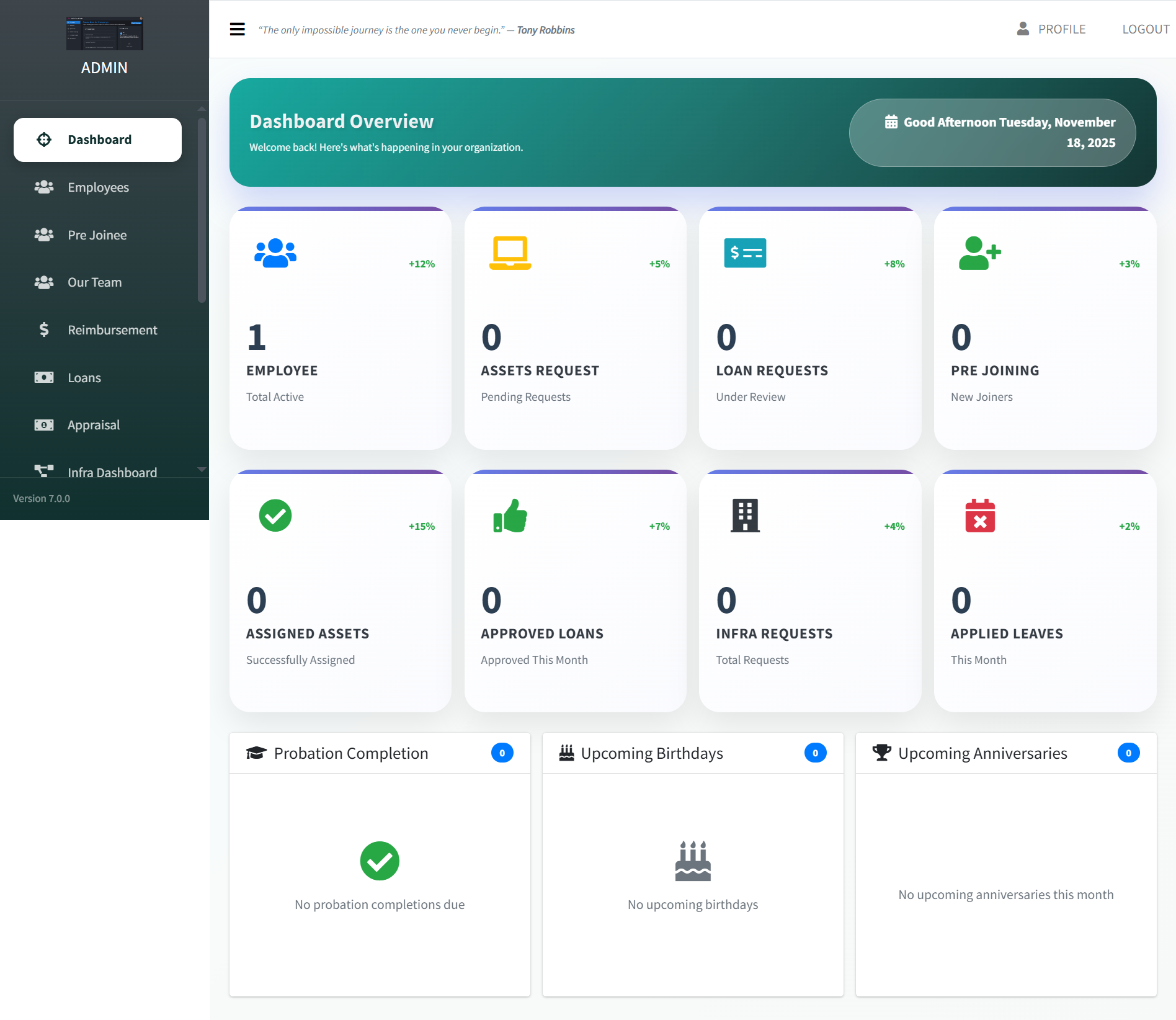
Key Metrics Cards
Employees
Active Count
Assets Request
Pending
Loan Requests
Under Review
Pre-Joining
New Hires
Operations & Approvals
Assigned Assets
Total number of assets successfully assigned to employees this month.
Approved Loans
Number of employee loan requests approved within the current month.
Infra Requests
Total infrastructure-related requests including IT support and facilities.
Applied Leaves
Number of leaves applied by employees this month.
HR Alerts & Notifications
Probation Completion
Displays employees nearing the end of their probation period.
Upcoming Birthdays
Lists employees with birthdays coming up in the current month.
Upcoming Anniversaries
Shows employees completing work anniversaries this month.
Frequently Asked Questions
The dashboard provides a real-time overview of all key HR activities—employees, requests, approvals, leaves, infra issues, and upcoming events.
Dashboard data is refreshed in real time. Whenever an action is taken—loan approval, leave request, asset assignment—the numbers update instantly.
Yes. Most cards act as quick navigation shortcuts. Clicking them opens the detailed page for that category.
Employees
The Employees section allows the Admin to view, manage, and add employee records within BitoHRIS. This module maintains all core employee information.
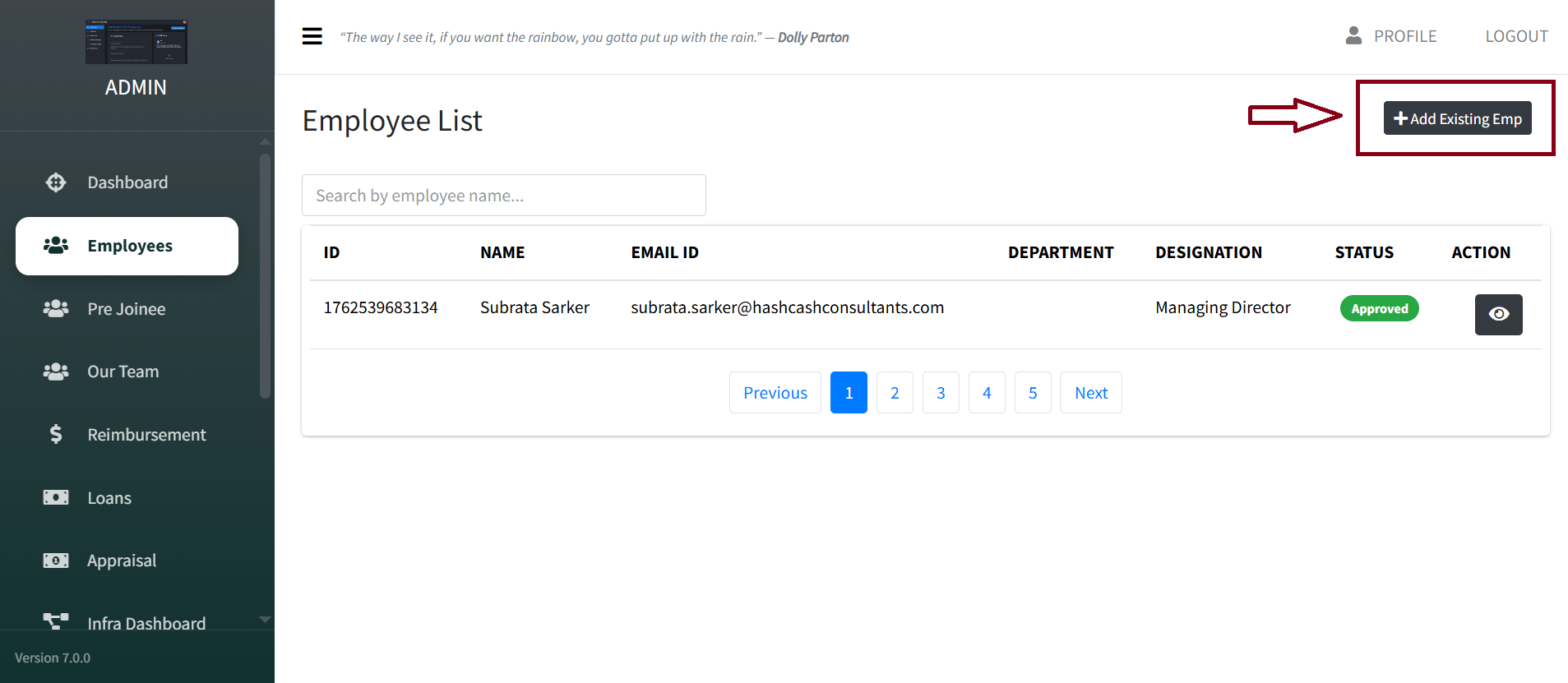
Employee List
| Field | Description |
|---|---|
| ID | Unique employee identifier |
| Name | Full name of the employee |
| Email ID | Registered email address |
| Department | Department assignment |
| Designation | Job title/role |
| Status | Active/Inactive status |
Add Employee Form Fields
- Employee ID
- Name
- Department
- Designation
- Reporting To
- Grade
- Employee Type
- Employee Status
- Joining Date
- Holiday Type
Pre-Joinee
The Pre-Joinee section allows Admins to manage candidates who are in the onboarding process before officially joining the organization.
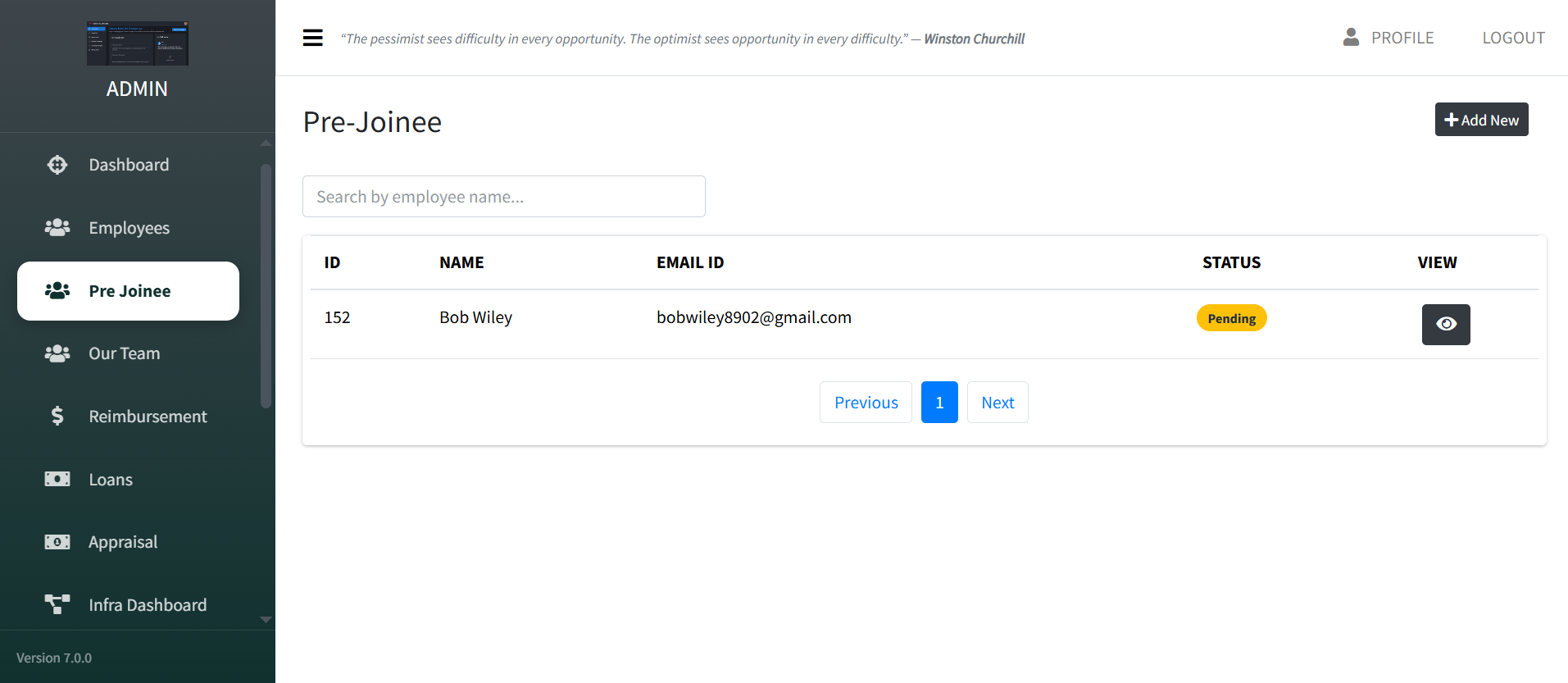
Add New Pre-Joinee
Click "+ Add New" Button
Located at the top-right corner.
Enter Basic Details
Enter only the Name and Email ID.
Account Created
The joinee receives login credentials via email.
Our Team
The Our Team section allows admins to quickly search for and view employee profiles across the organization.
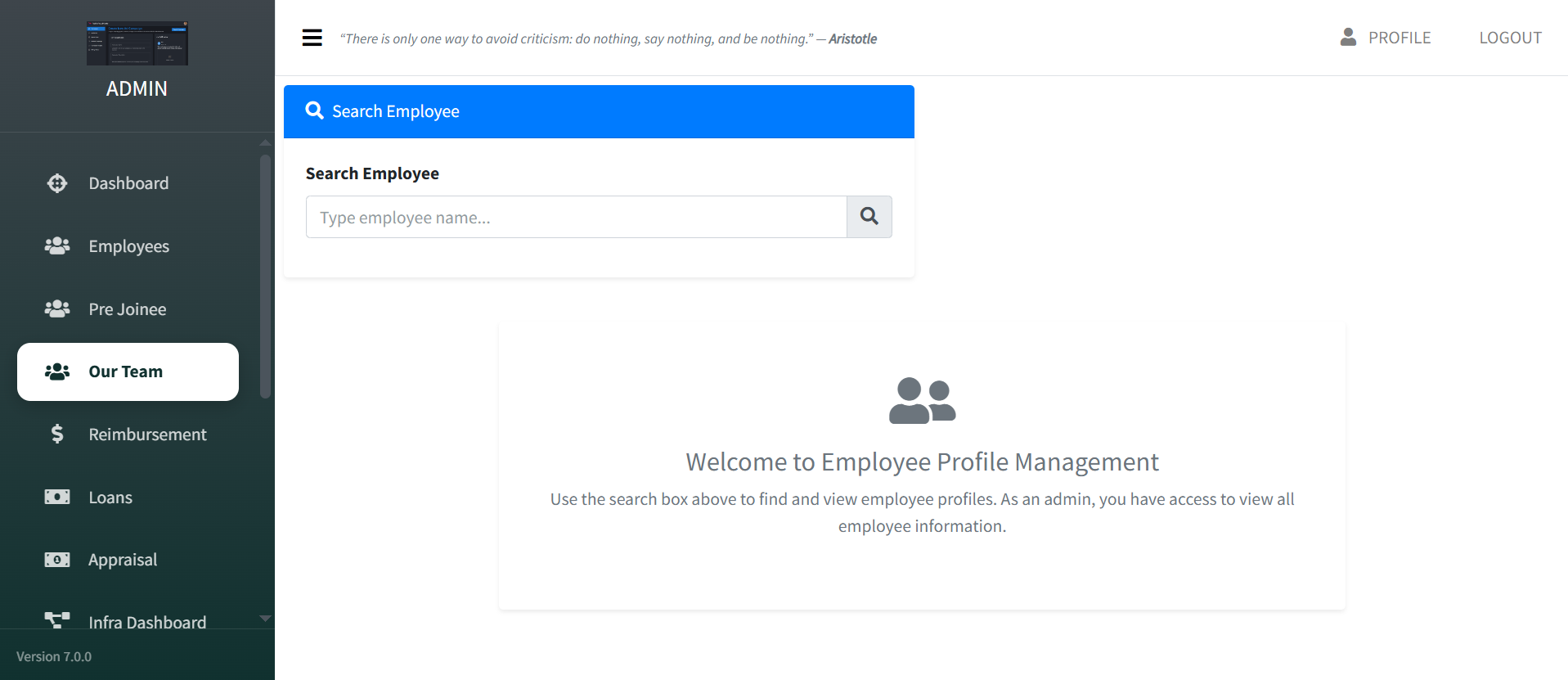
Search Employee
Use the search bar to look up any employee by name. Matching results appear instantly.
Employee Profile Management
View personal details, department, designation, contact information, and reporting hierarchy.
Reimbursement
The Reimbursement section allows Admins to view, manage, and filter all employee reimbursement requests.
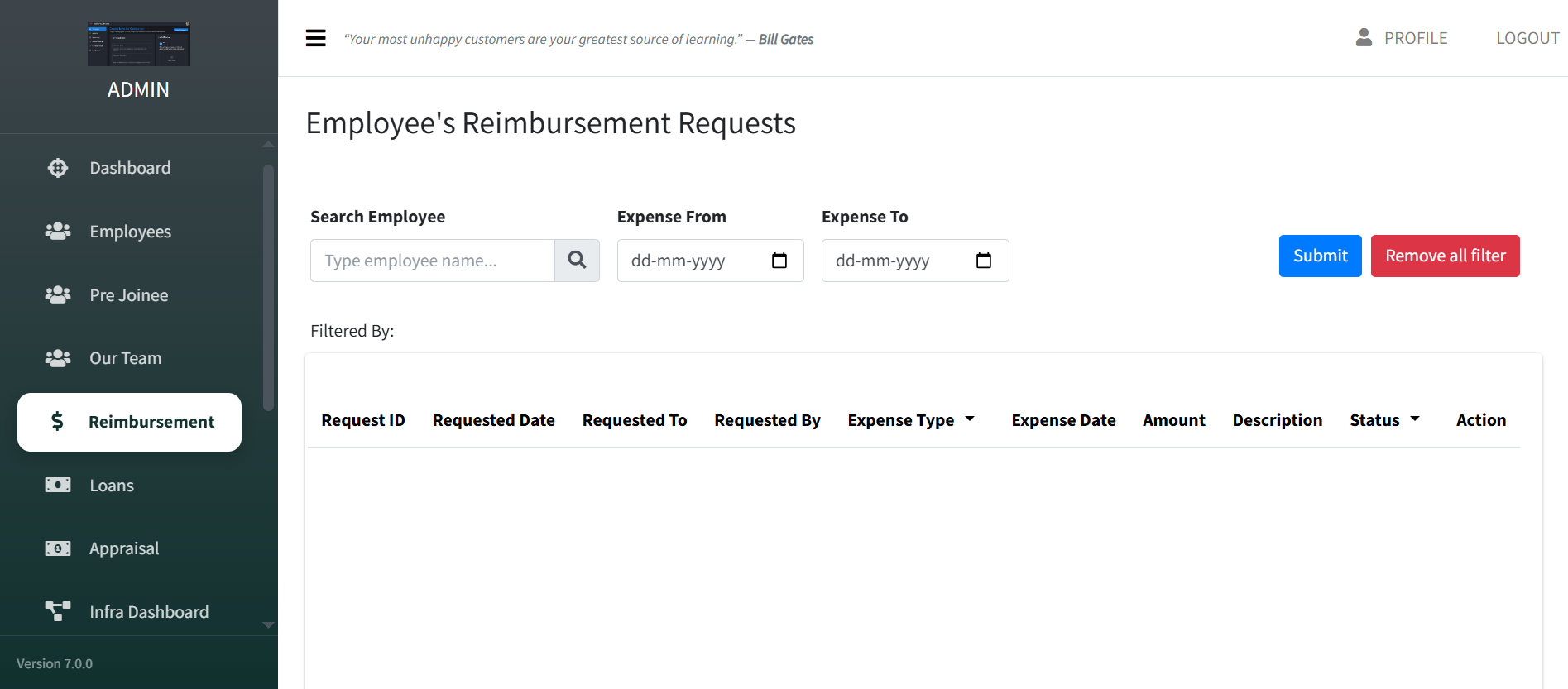
Filter Reimbursements
Expense From
Select the start date for filtering
Expense To
Select the end date for filtering
Reimbursement Request Details
| Column | Description |
|---|---|
| Request ID | Unique identifier |
| Requested By | Employee who submitted |
| Expense Type | Category of expense |
| Amount | Claimed amount |
| Status | Pending/Approved/Rejected |
Loans
The Loans section allows admins to view and manage all employee loan applications within the organization.
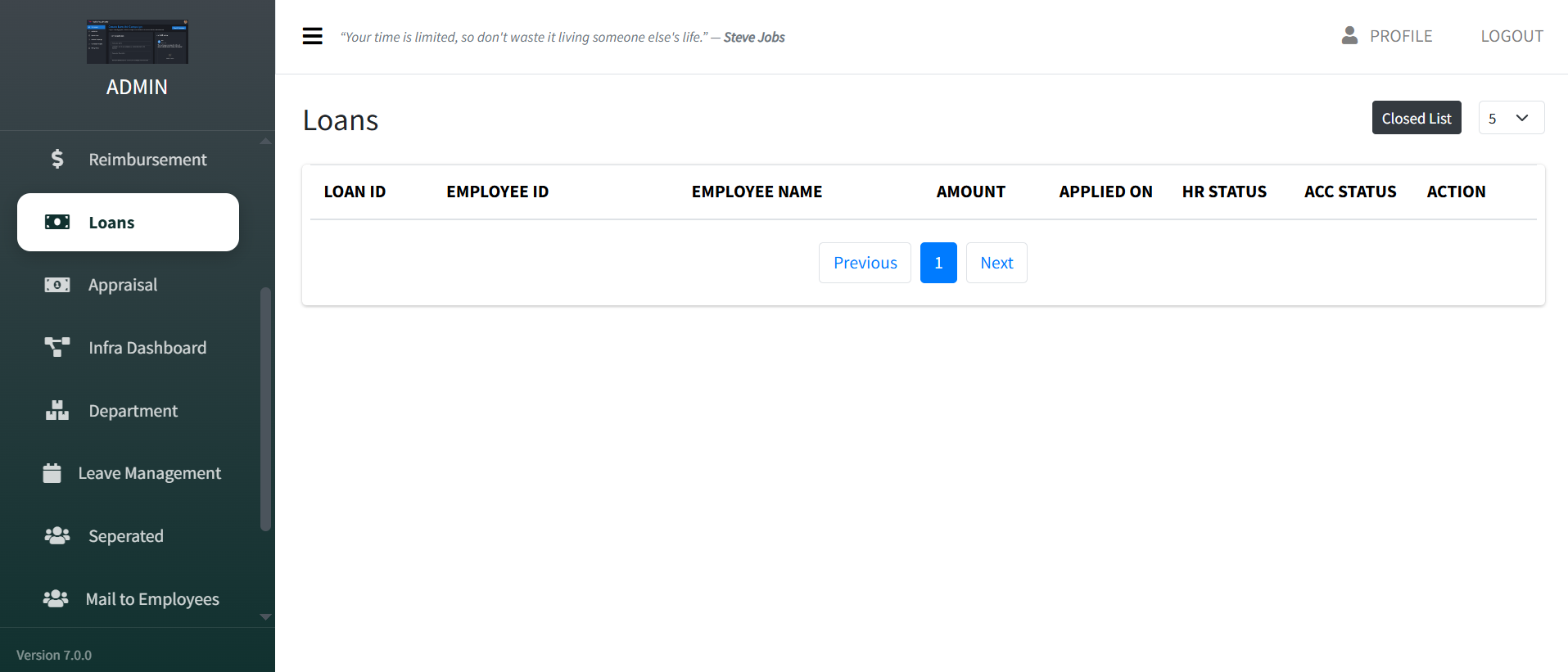
| Field | Description |
|---|---|
| Loan ID | Unique loan identifier |
| Employee Name | Name of the applicant |
| Loan Amount | Requested amount |
| HR Status | Approved/Rejected/Pending |
| Accounts Status | Processing status |
Appraisal
The Appraisal Management section allows admins to review and manage employee appraisal records for each appraisal cycle.

- View all employee appraisal entries for the selected cycle
- Track appraisal progress, including scoring and status updates
- Access individual appraisal details for review and verification
- Navigate between pages using Previous and Next buttons
Infra Dashboard
The Infra Dashboard provides a quick overview and management access for all infrastructure-related requests raised by employees.
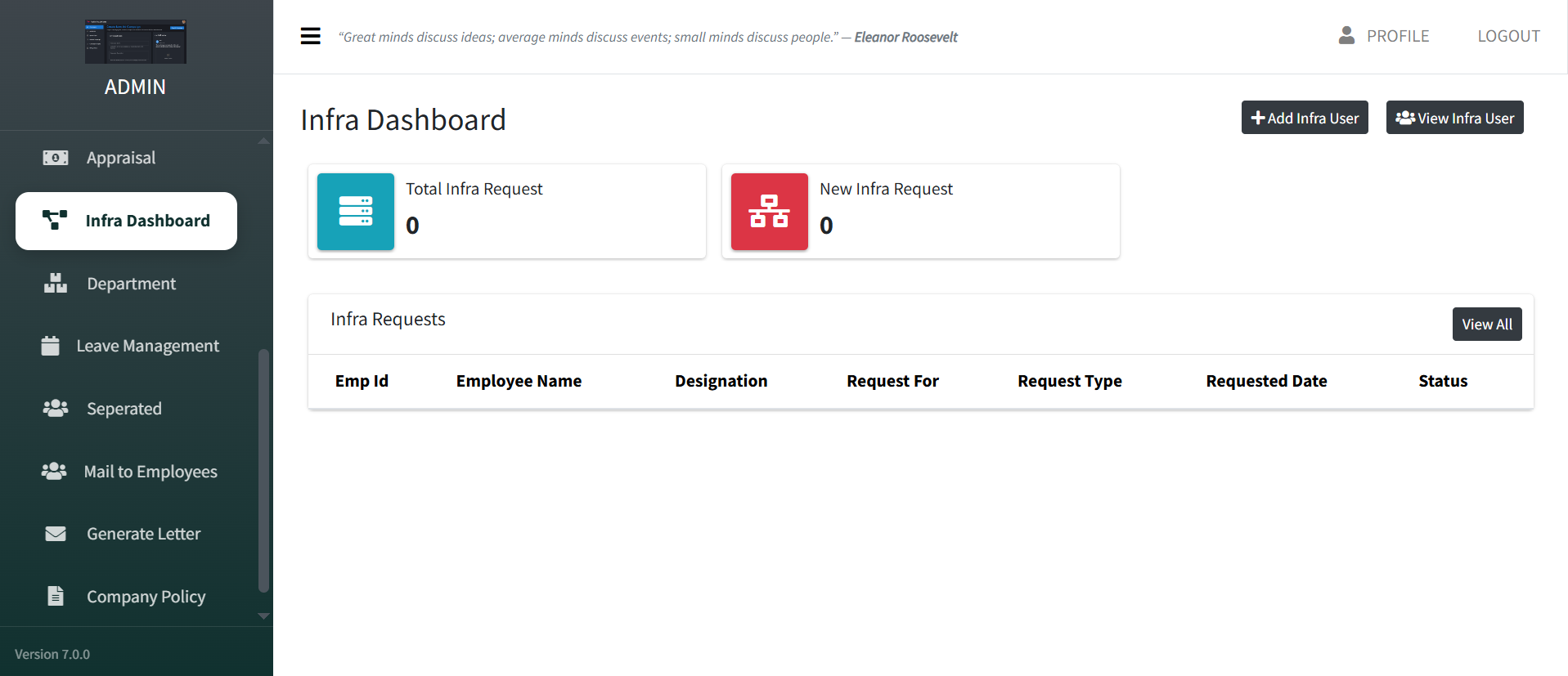
Total Infra Request
All Requests
New Infra Request
Pending Action
Add Infra User
Add new Infra users who can manage infrastructure-related tasks.
View Infra User
Opens the list of existing Infra users with details.
Department
The Department section allows admins to create, manage, and organize different departments within the organization.
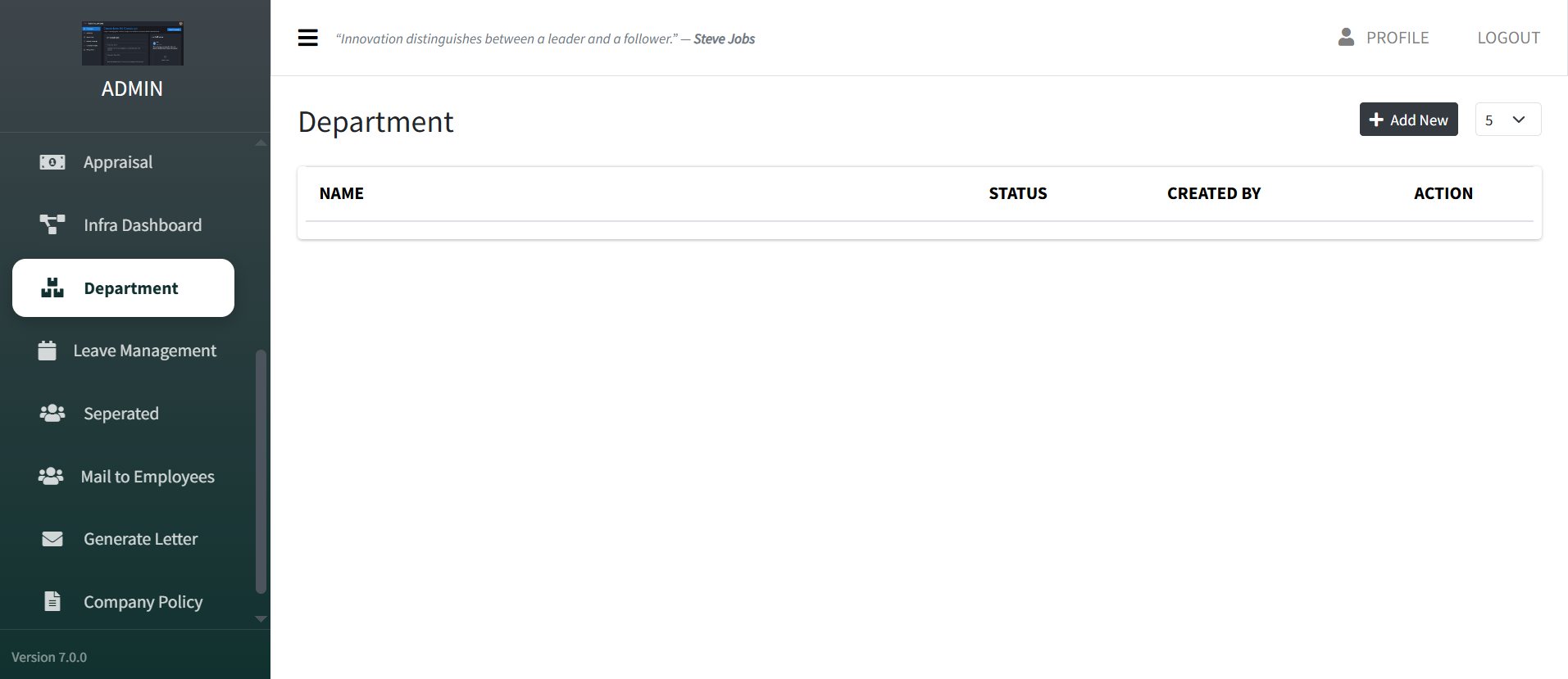
| Column | Description |
|---|---|
| Name | Official department name |
| Status | Active or Inactive |
| Created By | Admin who added it |
| Action | Edit, Deactivate, Delete |
Add New Department
Click "Add New"
Located on the top right.
Enter Details
Enter Department Name and set status to Active.
Save
Click Save to add the department.
Leave Management
The Leave Management module provides admins with a complete overview of all leave-related metrics, leave types, and employee leave activity.
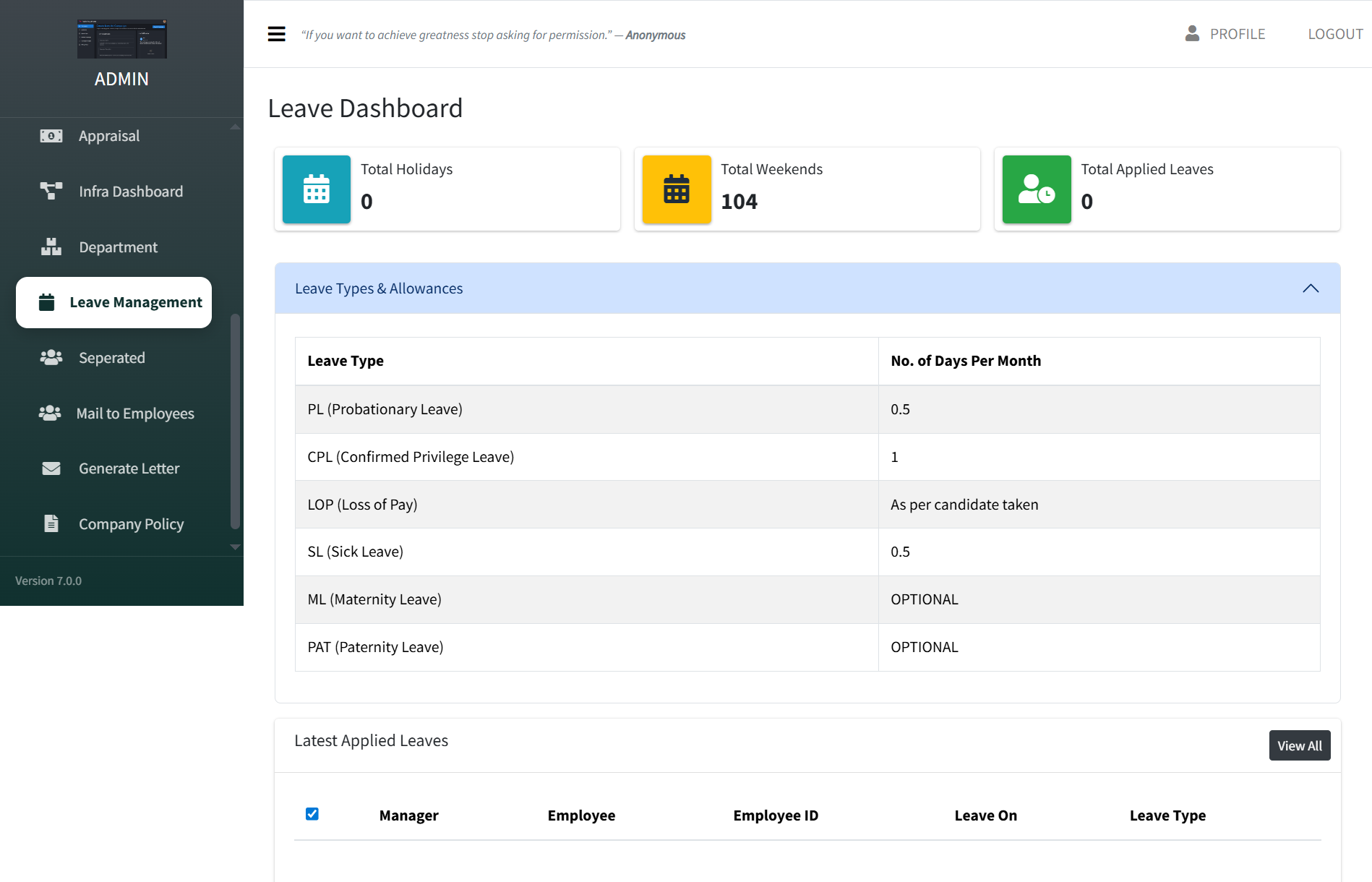
Total Holidays
Yearly Count
Total Weekends
Annual
Applied Leaves
Requests
Leave Types & Allowances
| Leave Type | Description |
|---|---|
| PL | Probationary Leave |
| CPL | Confirmed Privilege Leave |
| LOP | Loss of Pay |
| SL | Sick Leave |
| ML | Maternity Leave |
| PAT | Paternity Leave |
Separated
The Separated Employee module allows admins to view and manage the list of employees who are no longer part of the organization.
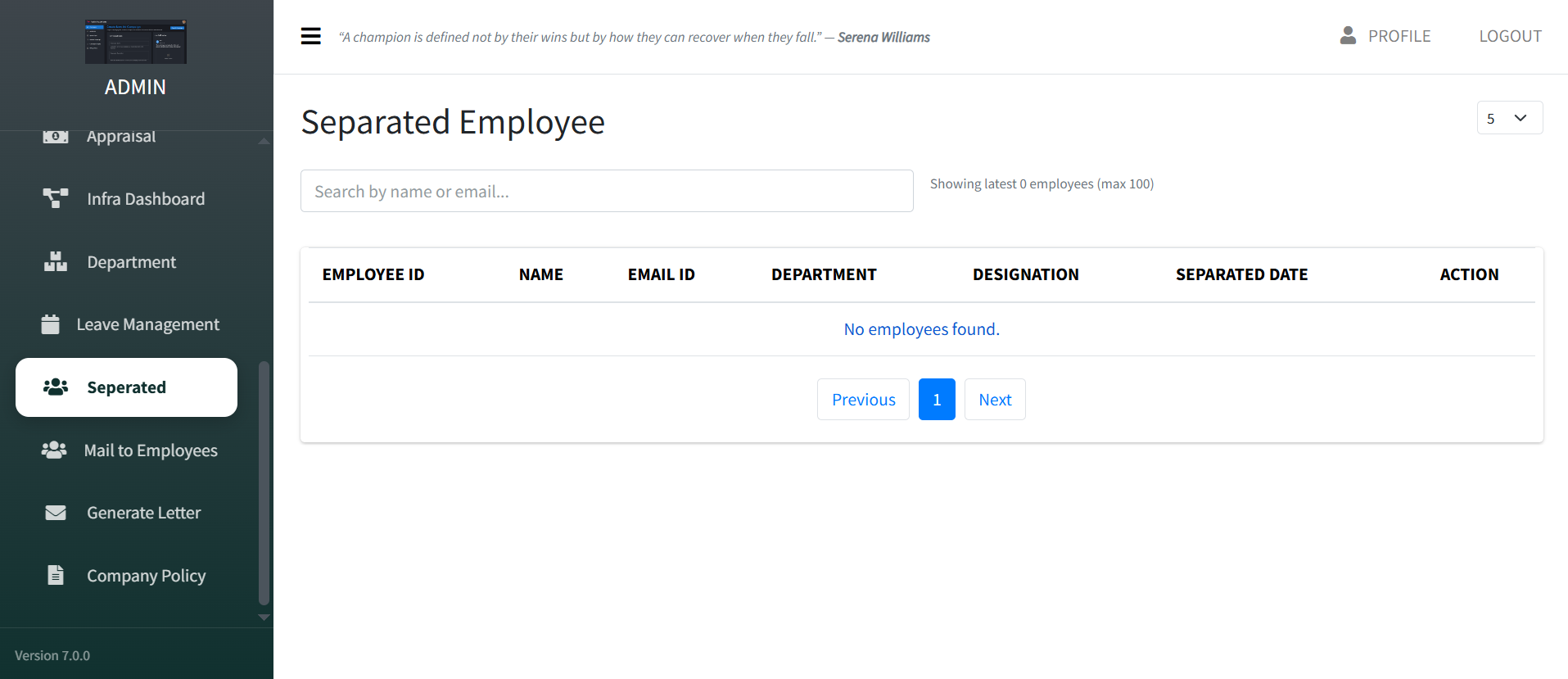
| Column | Description |
|---|---|
| Employee ID | Unique ID |
| Name | Full name |
| Department | Department they belonged to |
| Separated Date | Official exit date |
Mail to Employees
Send emails directly to employees from the HRIS system. Click the "+" icon to open the Compose Email form.

Select Recipients
Choose to send to all employees or a test user.
Enter Subject
Add a clear and relevant subject line.
Write Email Content
Use Rich Text Editor or HTML Template mode.
Add Attachments
Upload one or multiple files.
Generate Letter
Create and manage official employee letters directly from the HRIS system.
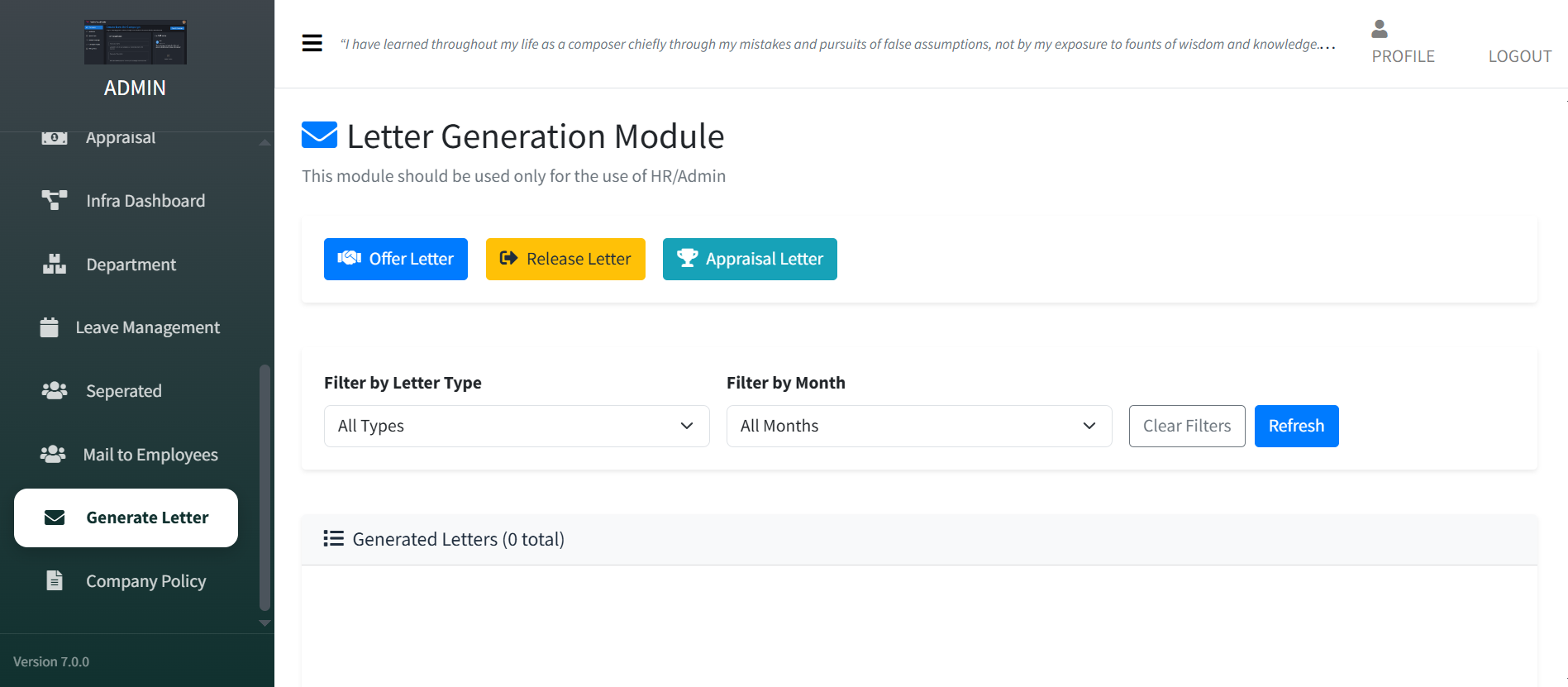
Offer Letter
New Hire
Release Letter
Exit
Appraisal Letter
Performance
Filter Generated Letters
- Filter by Letter Type
- Filter by Month
- Clear Filters
- Refresh to view latest entries
Company Policy
Create, upload, and manage all organizational policies in one place.
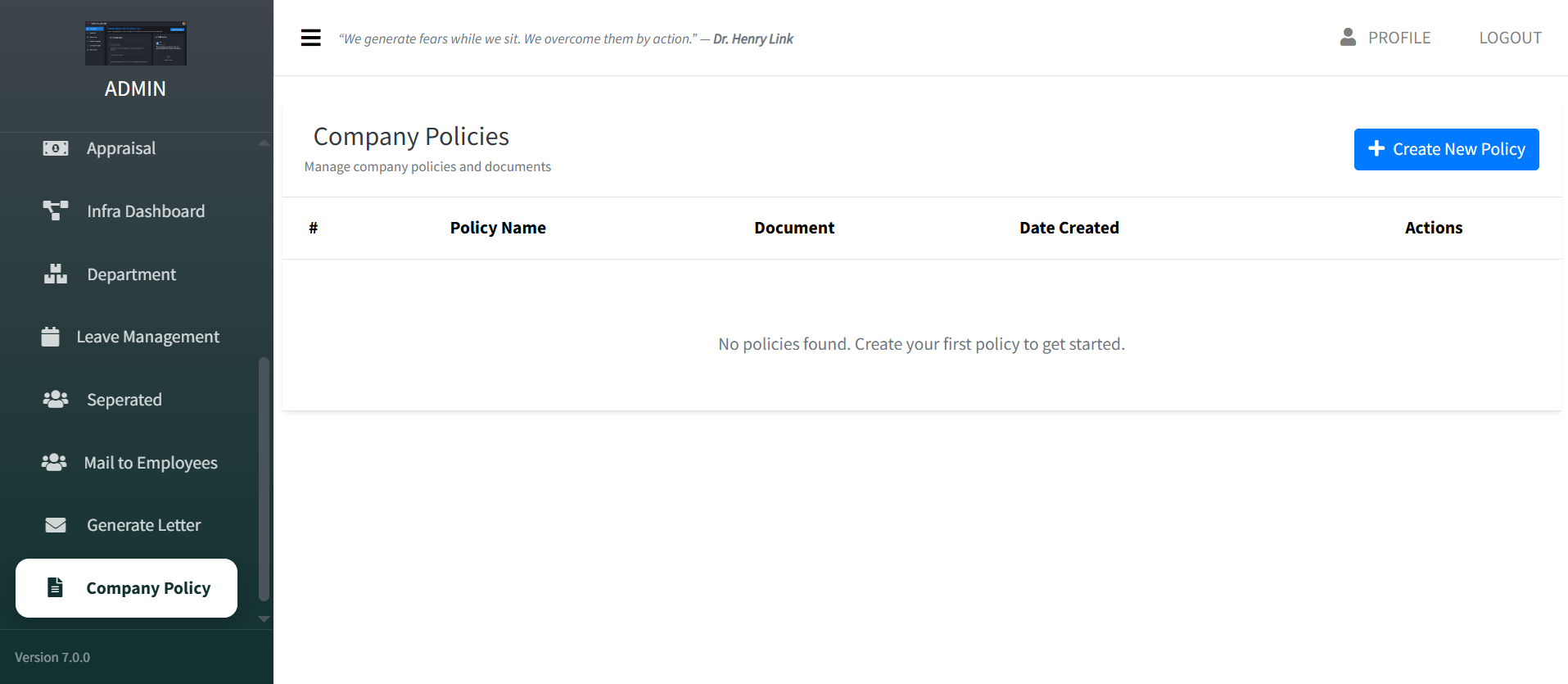
| Column | Description |
|---|---|
| Policy Name | Title of the policy |
| Document | Attached file |
| Date Created | When policy was added |
| Actions | View, Edit, Delete |
How to Create a New Policy
Click "Create New Policy"
Located in the top right corner.
Enter Policy Name
Provide a clear and descriptive title.
Upload Document
Supported: PDF, DOC, DOCX (Max 10 MB)
Click Create Policy
The policy will appear in the list.